How-to · Measurement
Screen ruler Chrome extension: measure any web page in pixels
The short answer
Install Screen Ruler, click its icon on the tab you want to measure, and switch between drag measure, element measure, guides and a color loupe with keys 1–4. It installs with no site access — the overlay runs only where you invoke it, and Esc removes it.
- 1
Install Screen Ruler and pin it to the toolbar.
- 2
Open the page you want to measure and click the icon — the overlay appears on that tab only.
- 3
Drag to measure a region, or press 2 and hover elements to read sizes and gaps.
- 4
Press 3 for guides or 4 for the color loupe when the question changes.
- 5
Nudge the active measurement with the arrow keys for pixel-exact placement.
- 6
Press Esc to remove the overlay completely.
Search for a screen ruler extension and you'll find a crowd of overlays, many of them asking to "read and change all your data on all websites" for the privilege of drawing a rectangle. That trade isn't necessary. Screen Ruler is a full measuring toolkit that installs with no site access at all: nothing runs until you click the icon, and then only on that tab.
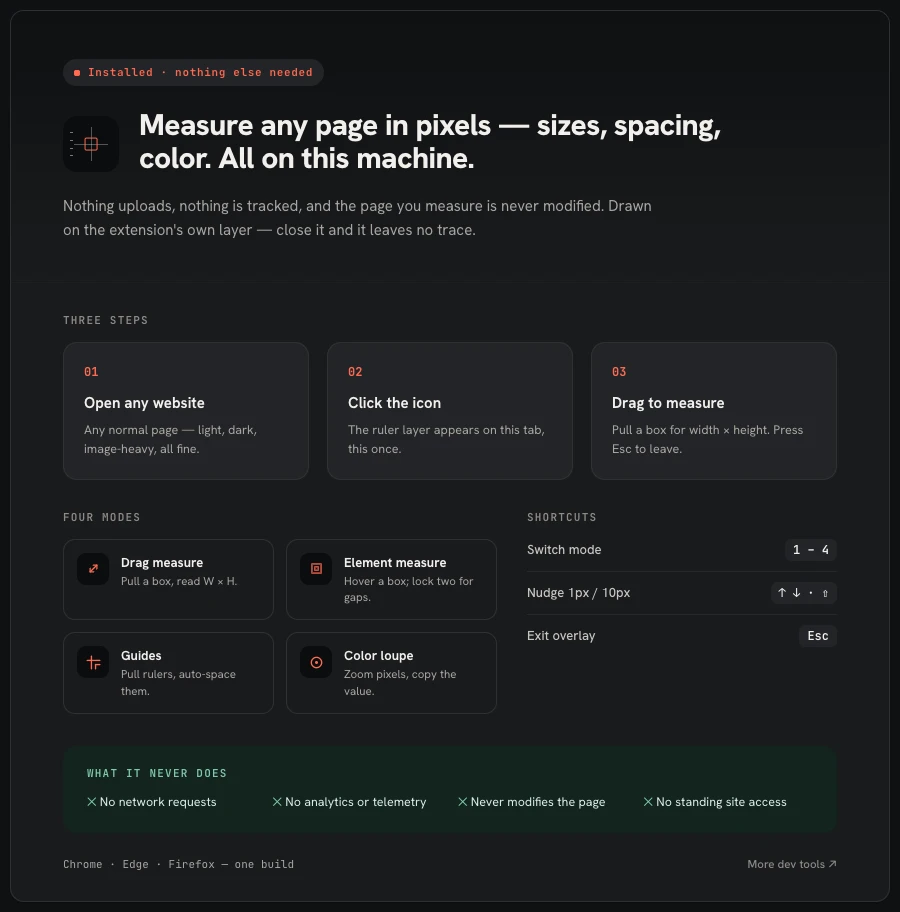
One overlay, four modes
Click the icon and a measuring layer appears on the current page. Keys 1–4 switch modes: drag measure pulls a box between any two points and reads its width × height; element measure hovers element boxes and can lock two of them to read the gap between them; guides pins straight reference lines to the page; and the color loupe zooms into pixels and copies the value under the crosshair. Between them they cover most "how many pixels is that?" questions without opening DevTools.
Built for the keyboard
Measurements and guides aren't drag-only: arrow keys nudge the active one by 1px, and by 10px with Shift held, so you can land exactly on the pixel you meant. Esc exits the overlay completely. If you nearly always start in the same mode, the settings page lets you pick the default mode on launch.
What it never asks for
Screen Ruler has no host permissions — the overlay is injected through Chrome's activeTab grant when you click the icon, so no content script sits on the sites you visit. It makes no network requests, carries no analytics, and never modifies the page: everything is drawn on the extension's own layer, and closing it leaves no trace. It's free, with no account and no paid tier.
What it can't do
Two honest limits. Browsers don't let extensions run on internal pages — settings screens, the Web Store, a blank new tab — so Screen Ruler tells you a page can't be measured rather than pretending. And it measures rendered pixels: if you need the authored CSS — the margin as written, which breakpoint applies — DevTools is the right tool. The ruler verifies what the browser painted; DevTools explains why.
Chrome and Edge
The same build installs on Chrome and on Edge from their respective stores, so a mixed team can standardize on one tool and one set of shortcuts.