How-to · Research
How to ask questions about a web page in Chrome
The short answer
Open ProofJump's side panel, type your question, and get an answer where every claim cites — and highlights — the exact sentence of the page it came from. Anything the page doesn't support is flagged "no source on page". You choose where the AI runs: on-device, your own API key, or Pro cloud.
- 1
Open the ProofJump side panel on the page you want to ask about.
- 2
Type your question in plain language.
- 3
Read the answer — every claim carries a verbatim quote from the page.
- 4
Click a citation to jump to the highlighted source sentence and verify it in context.
- 5
Treat any "no source on page" flag as exactly that: the page doesn't support the claim.
Sometimes you don't want to read a whole page — you want to ask it something. "What does this policy say about refunds?" "Which dataset did they actually use?" In Chrome, ProofJump adds a side panel that answers questions about the page you're on, and unlike a generic AI chat, every claim in the answer is pinned to the exact sentence it came from — so you can check the answer instead of trusting it.
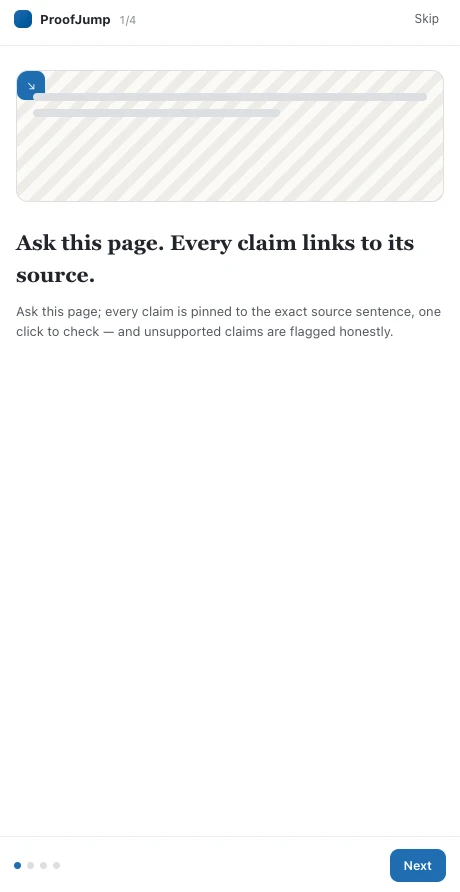
Open the side panel on the page
Click the ProofJump icon on the page you're reading and the side panel opens next to it. The extension uses activeTab, so it has no standing access to your browsing — it reads a page's text only after you invoke it on that tab, and it reads only that page.
Ask in plain language
Type the question the way you'd ask a colleague. ProofJump answers from the page's own text — it doesn't search the web or pull in outside sources. That restriction is the feature: because the answer can only come from the page in front of you, every part of it can be traced to a sentence you can see.
Read the answer claim by claim
The answer arrives broken into claims, each with a verbatim quote from the page. Click "Jump to source" and Chrome scrolls to that sentence and highlights it in place — the page itself isn't modified — so you verify the claim in its original context. Step through all the evidence with next and previous.
Notice what the page doesn't say
If part of an answer has no basis in the page, ProofJump marks it "no source on page" instead of papering over it. When you're deciding whether to rely on something, an unsupported claim is the most important thing to know — so it's surfaced, not hidden.
Choose where the AI runs
In settings you pick one of three processing paths: on-device AI (Chrome's built-in model, where your browser supports it — the page text never leaves your computer), your own API key (sent directly to OpenAI, Anthropic or Google; nothing passes through ProofJump's servers), or ProofJump's Pro cloud. For the two network paths there's an optional local PII redaction switch: emails, phone numbers, card numbers and API tokens are replaced with placeholders on your device before anything is sent, and restored locally when the answer comes back.