How-to · Research
How to cite a web page or PDF in Chrome (APA, MLA, Chicago)
The short answer
Open the side panel on any page or PDF and generate a formatted citation in APA, MLA, Chicago or GB/T with one click, then keep it in a private reference library. Everything runs locally — your sources stay in the browser.
- 1
Open the CiteRoam side panel on the page or PDF (or press Alt+C).
- 2
Choose a style — APA, MLA, Chicago or GB/T.
- 3
Copy the citation into your document.
- 4
Keep it in your private reference library for later.
Citing sources by hand — copying the title, author, URL and date into the right format — is slow and error-prone. In Chrome you can turn the page or PDF you’re reading into a correctly formatted citation in one click, and build up a reference library as you go.
Open the side panel on any page
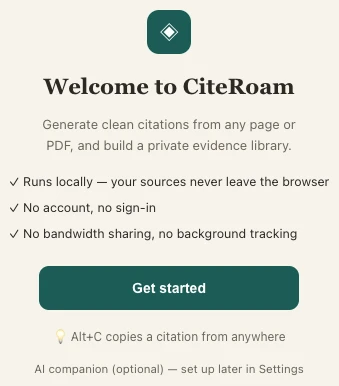
On the page or PDF you want to cite, open CiteRoam’s side panel. The shortcut Alt+C generates a citation from wherever you are, without leaving the tab.
Pick a citation style
Generate the reference in APA, MLA, Chicago or GB/T. Copy it straight into your document, or keep it for later.
Build a private reference library
Every citation you keep is saved to a private library in your browser, so a research session becomes a reusable source list — no account, no sync.
Local-first by design
CiteRoam is local-first: your sources and library stay in the browser. There’s no sign-in and nothing about what you read is uploaded.