How-to · OCR
How to copy Chinese text from an image in Chrome
The short answer
Switch the recognition language to 中文 + English and drop the image into a local OCR workspace. The Chinese language pack is bundled inside the extension, so recognition runs on your device — mixed Chinese/English text comes back in one editable pass, with no upload.
- 1
Click the Image OCR icon and set the recognition language to 中文 + English.
- 2
Open "Text from an image file" and drop, pick or paste (Ctrl+V) the image — or capture the region of the page that holds the text.
- 3
Let the bundled engine recognize the Chinese (and any mixed English) locally.
- 4
Compare the editable output against the original and fix any misread characters — Chinese errors don't stand out the way garbled English does.
- 5
Click "Copy all" and paste the text wherever you need it.
Chinese text has a way of arriving as pixels: a WeChat screenshot, a photographed menu, a scanned form, a product page that won't let you select anything. Feed that to an OCR tool tuned for Latin script and you get soup — and most online tools that do handle Chinese want the image uploaded to their servers first. In Chrome you can do the whole job locally, because Image OCR ships a Chinese + English recognition pack inside the extension.
Switch the recognition language to 中文 + English
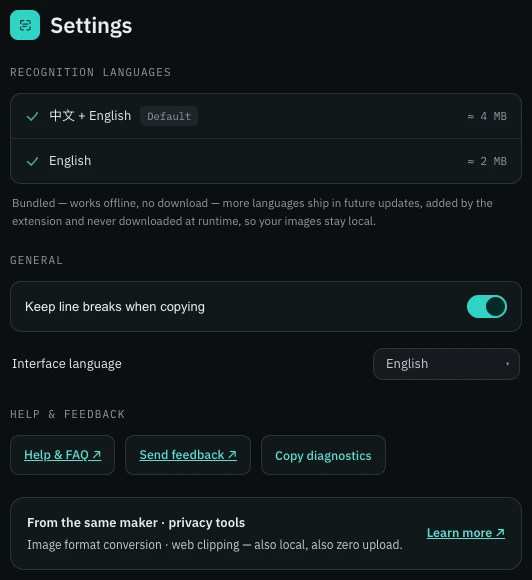
Open the popup or the workspace and set the recognition language to 中文 + English. It is one combined configuration, not a toggle between two: text that mixes Chinese and Latin — a receipt with English brand names, a UI screenshot with both scripts — is recognized in a single pass. The pack is a few megabytes of Tesseract language data bundled with the extension, so selecting it downloads nothing and it works offline.
Drop the image in — or capture it off the screen
Choose Text from an image file and drag, pick or Ctrl+V-paste the image (PNG, JPG, WebP or BMP). If the Chinese text sits on a web page rather than in a file — baked into an image, in a video frame — use the capture option instead and drag a box around just that region. Both routes feed the same local engine, and the recognized text appears beside the original in an editable box.
Proofread — Chinese output fails quietly
Written Chinese has no spaces, so a misread character doesn't announce itself the way a garbled English word does. Compare the output against the original — click the image to look closer — and fix characters in place before hitting Copy all. Two honest caveats. First, the bundled pack is trained on Simplified Chinese; text that is mostly Traditional characters will misread more often. Second, like all local recognition it is weakest on skewed photos, low contrast and handwriting — a flat, sharp, tightly-cropped image is the best input you can give it.
Nothing leaves your machine
Contracts, chat logs and ID scans are exactly the images you least want on a stranger's server. Here the engine, the language data, the image and the extracted text all stay in your browser — it works offline, needs no account and costs nothing. For the general file workflow see extracting text from an image in Chrome; for grabbing on-screen text, copying text from a screenshot.