How-to · OCR
An offline image to text converter for Chrome — no upload, ever
The short answer
Use an extension that ships the OCR engine inside its own package. Recognition runs on your device, so converting an image to text works with Wi-Fi off and the picture never touches a server — no account, no per-page limit.
- 1
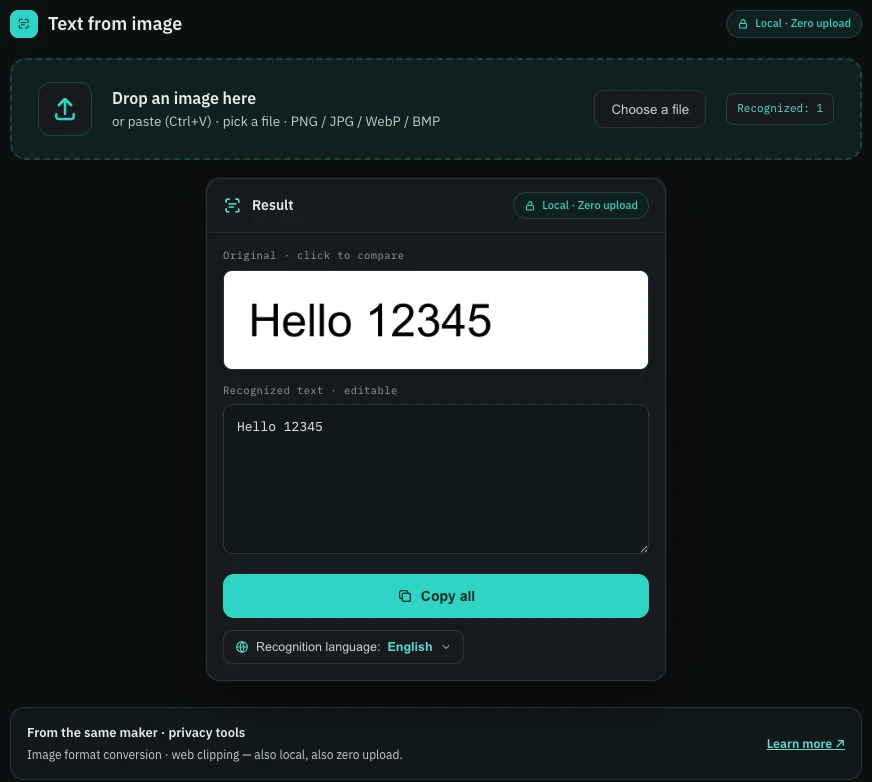
Install Image OCR, click its icon and choose "Text from an image file" to open the workspace.
- 2
Drop, paste (Ctrl+V) or pick the image — PNG, JPG, WebP or BMP. Turn off Wi-Fi first if you want proof it is offline.
- 3
Set the recognition language: English, or 中文 + English for Chinese text.
- 4
Wait a few seconds while the bundled engine converts the image to text on your device.
- 5
Proofread the editable result against the original and click "Copy all".
Almost every "image to text converter" you find in search results works the same way: you upload the picture, their server runs OCR on it, and you copy the result — leaving a copy of your screenshot, invoice or ID on infrastructure you know nothing about. There is an offline alternative that lives in Chrome: an extension that ships the recognition engine inside its own package, so converting an image to text never touches the network.
What "offline" means here — actually zero network
Image OCR bundles Tesseract, the open-source OCR engine, compiled to WebAssembly, together with its language data. Nothing is fetched at runtime — no cloud API, no "downloading model on first use". You can verify the claim yourself: open DevTools on its network panel while it recognizes, or simply switch off Wi-Fi. Conversion behaves exactly the same in airplane mode, which is the honest test any "private" converter should have to pass.
Convert an image to text
Click the extension icon and choose Text from an image file. The workspace takes PNG, JPG, WebP and BMP — drag the file in, pick it from disk, or paste it straight from the clipboard with Ctrl+V. Recognition starts immediately, and the extracted text appears next to the original image in an editable box. Fix any misread characters in place, then click Copy all.
Pick the recognition language
Two language configurations ship inside the extension: English, and 中文 + English for Chinese text (including Chinese mixed with English). Both are bundled, so switching is instant and works offline too. More languages are planned for future updates and will arrive the same way — added by the extension itself, never downloaded at runtime. If your image is in a language outside those two, this tool won't read it yet; that is the honest cost of shipping everything locally.
Know what it is good and bad at
Local recognition is excellent on clean screenshots and crisp scans of printed type. It is noticeably weaker on skewed photos, low-contrast images and handwriting — the extension's own onboarding says so up front. If a photo comes back mangled, retake it flatter and closer, or crop tighter before dropping it in; the editable result box exists precisely because OCR output deserves a proofread.
Text on screen, not in a file?
The same extension can capture a region of the current tab, so text on screen is one drag away as well — see the companion guides on extracting text from an image and copying text from a screenshot. Either way the pipeline is identical: free, no account, and offline from the first pixel to the copied text.