How-to · Accessibility
How to check color contrast for WCAG in Chrome
The short answer
Open Contrast Checker's popup, pick two colors or sample them from the page, and read the contrast ratio with an instant WCAG AA/AAA pass or fail. For a full audit, scan the whole page from the side panel. Everything is computed locally — no color leaves your browser.
- 1
Click the Contrast Checker icon to open the popup on the page you're testing.
- 2
Enter the foreground and background colors, or sample them from the page with the eyedropper.
- 3
Read the contrast ratio and the AA/AAA pass or fail for normal and large text.
- 4
If a pair fails, adjust lightness until the verdict flips, then re-check.
- 5
Open the side panel and scan the whole page to catch failing pairs you missed.
You don't need to copy hex codes into a contrast-checking website. In Chrome, Contrast Checker grades colors on the page you're actually testing: pick a pair in the popup, sample them from the live page, or scan the whole page from the side panel. Every ratio is computed locally, and nothing you check is sent anywhere.
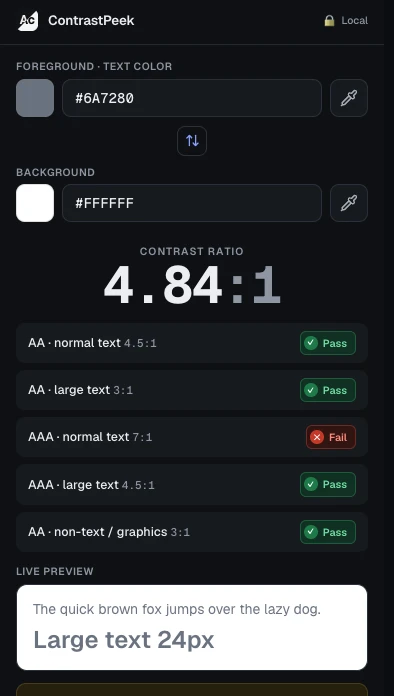
Pick or sample the two colors
Click the Contrast Checker icon to open the popup, then enter a foreground and a background color — or use the eyedropper to sample them straight from the page. Sampling matters when you're auditing a site you didn't build: you get the color the browser actually painted, without digging through DevTools for computed values.
Read the ratio and the AA/AAA verdicts
The popup shows the contrast ratio (the scale runs from 1:1 to 21:1, black on white) and grades it against both WCAG levels at the same time. For normal text, AA requires at least 4.5:1 and AAA requires 7:1. For large text — 18pt (24px) regular, or 14pt (about 18.7px) bold — the thresholds drop to 3:1 and 4.5:1. You see each case pass or fail without doing any arithmetic.
Fix a failing pair, then re-check
Contrast is dominated by lightness, not hue. If a pair fails, darken the text or lighten the background until the verdict flips — a small hue shift almost never rescues a failing ratio. Re-check the adjusted pair in the popup before it lands in your CSS, and keep the passing values next to your design tokens so the next change starts from a known-good pair.
Audit a whole page from the side panel
Checking pairs one at a time is fine for a component and slow for a page. Open the side panel and scan the current tab: it walks the visible text and reports the combinations that fail, so you start from the actual problems instead of hunting for them element by element.
Gradients get an honest "can't compute"
Text sitting on a gradient, a photo, or stacked semi-transparent layers has no single background color, so a single ratio would be a fiction. Contrast Checker marks those cases as unmeasurable instead of inventing a number. When that happens, sample the lightest and darkest points of the background by hand and check the text against both — if it passes at both extremes, it passes everywhere in between.
It only reads the page when you ask
The extension has no standing access to any site. It uses activeTab, so it can only see a page after you invoke it on that tab, and every ratio is computed on your machine. No account, no upload, no tracking.