How-to · Accessibility
How to scan a page for contrast issues in Chrome
The short answer
Open Contrast Checker's side panel on the page and run a scan: it walks the visible text, computes each ratio locally, and lists every combination that fails WCAG AA or AAA. Fix the CSS, re-scan the same tab, and backgrounds it can't resolve — gradients, images — are marked unmeasurable instead of given a fake number.
- 1
Open the page you want to audit, click the Contrast Checker icon and open the side panel.
- 2
Run the scan — it walks the visible text and computes every ratio locally.
- 3
Review the failing pairs; fix body text below 4.5:1 first, then large text below 3:1.
- 4
Check anything marked unmeasurable by hand: sample the background's lightest and darkest points with the eyedropper.
- 5
Adjust the CSS, reload, and re-scan the same tab until the list is clean.
Checking colors one pair at a time works for a component; it does not work for a page. Real pages mix body text, secondary labels, links, captions and buttons, each sitting on its own background — and the failing pair is usually one you never thought to test. Contrast Checker, a free Chrome extension, scans the whole page from the side panel and lists every text combination that fails WCAG. Every ratio is computed locally, and nothing on the page is sent anywhere.
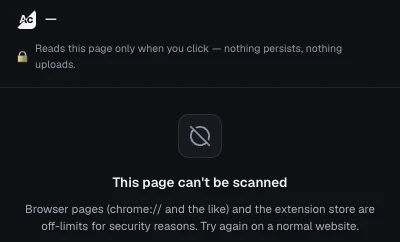
Open the side panel on the page you're testing
Click the Contrast Checker icon and open the side panel. Unlike a popup, it stays docked next to the page while you work — which is exactly what an audit needs, because you will be scrolling, fixing and re-scanning. The extension uses activeTab, so it can only read a page after you invoke it on that tab; it has no standing access to any site.
Run the scan
Start the scan and the extension walks the visible text on the current tab, resolves each run of text against the background the browser actually painted behind it, and computes the contrast ratio on your machine. Instead of a page you have to inspect element by element, you get a list of the combinations that fail — the audit starts from the problems, not from a blank page.
Triage by severity, not by count
A scan result is a to-do list, so order it like one. Body text below 4.5:1 hurts the most readers and fails WCAG AA outright — fix it first. Large text (24px regular, or about 18.7px bold) only needs 3:1, so a heading flagged at 4:1 is a lesser problem than a paragraph at the same ratio. Many failures share one root cause: a single gray defined in one CSS variable and reused everywhere, which means one token change can clear half the list.
Expect a few honest "can't compute" results
Text sitting on a gradient, a photo or stacked semi-transparent layers has no single background color, so no single ratio would be true. Contrast Checker marks those cases as unmeasurable instead of inventing a number. Check them by hand: sample the lightest and darkest points of the background with the popup's eyedropper and test the text against both extremes — if it passes at both, it passes in between.
Fix, re-scan, repeat
After you adjust the CSS — the repair is almost always a lightness change, covered in how to fix low contrast text — reload and scan the same tab again. The list shrinking to zero is your evidence, on the rendered page rather than in a spreadsheet of design tokens. No account, no upload, no tracking: the whole audit runs in your browser.