How-to · Typography
How to check font size and line height on a page
The short answer
Start Font Finder's inspector and hover the text: the tip shows the rendered font size, and you can add line height to it in settings — or click to pin a card with size, line height and letter spacing, shown in px, pt or rem. Everything is computed locally in your browser.
- 1
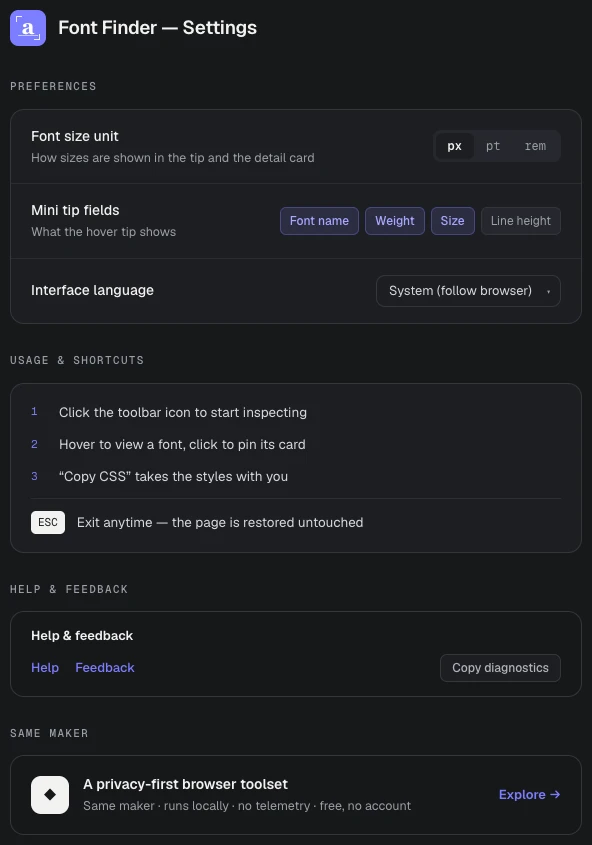
Open Font Finder's settings and pick your size unit — px, pt or rem.
- 2
Turn on Line height in the mini tip fields if you want it shown on hover.
- 3
On the page, click the Font Finder icon and press Inspect fonts on this page.
- 4
Hover the text — the tip shows the rendered font size (and line height, if enabled).
- 5
Click to pin the detail card for line height, letter spacing and the full stack, then Copy CSS if you need it.
- 6
Press Esc when you are done; the page is restored untouched.
Whether you are matching a mockup, auditing readability, or documenting a design system, two numbers matter more than any others: the font size and the line height the page actually renders. Both are easy to get wrong by reading the stylesheet, because both are usually written relative — 1.25rem, 120%, a unitless 1.6 — and only resolve to real values on the live element.
Why the stylesheet number misleads
Font sizes inherit and compound: an em value multiplies whatever its parent resolved to, and a unitless line height multiplies whatever font size the element ended up with. The number worth checking is the computed one, on the element, in the browser. Chrome DevTools has it in the Computed panel — for one element at a time, behind a right-click and a scroll.
Hover to read both numbers
Font Finder turns that into a sweep. Click the toolbar icon, press Inspect fonts on this page, and hover any text: a mini tip follows your cursor with the font name, weight and rendered size. Want line height on hover too? It is one toggle away.
Pin the card for the full metrics
Click the text and a detail card pins in place: font size, line height, letter spacing, weight, style, color, and the complete family stack with the rendered family marked. The Copy CSS button turns it into a paste-ready declaration block, so the numbers go straight into your stylesheet instead of a sticky note.
Sizes in px, pt or rem
The unit switch in settings controls how sizes are reported. Choose rem and the value is converted against that page's root font size — no dividing by 16 in your head. Line height stays relative where the page defines it relative to the font size, so the ratio you take away scales correctly when you apply it at a different size in your own design.
Sweep the page to audit the type scale
Because reading a value is just hovering, checking a whole page takes a minute: glide across the h1, the body copy, the captions and the buttons, and inconsistent scale steps or cramped leading show up immediately. The inspector runs entirely locally, makes no network requests, and needs no host permissions — it exists only on the tab where you started it, and Esc removes it completely.