How-to · Typography
What font does a website use? Three ways to check in Chrome
The short answer
Hover the text with Font Finder: a tooltip names the typeface your browser actually rendered — not just the first name in the CSS stack — with its weight and size. For lettering inside images, use a screenshot matcher instead; for live text, the page's computed styles are the ground truth.
- 1
Open the website whose typography you are curious about.
- 2
Click the Font Finder icon and press Inspect fonts on this page.
- 3
Hover any text — the tooltip names the font that actually rendered, with its weight and size.
- 4
Click the text to pin a detail card showing the full stack, with the rendered family marked and web fonts flagged.
- 5
Press Esc to leave; the page is restored untouched.
You land on a page with beautiful typography and ask the obvious question: what font does this website use? There are three honest ways to find out, and they differ a lot in speed and accuracy — mostly because of one detail almost every quick answer skips: the font a site declares and the font your browser renders are often not the same thing.
Declared vs rendered: the trap in every CSS answer
A rule like font-family: "Neue Haas", Arial, sans-serif is a wish list, not an answer. If the first family is not available on your machine and the page does not load it as a web font, the browser falls through the list silently — visitors may be reading Arial while the stylesheet suggests something fancier. So the real question is not "what does the CSS say" but "which family actually rendered on my screen".
Way 1: Chrome DevTools
Right-click the text, choose Inspect, and open the Computed tab. The font-family value shows the declared stack, and scrolling to the bottom of the panel reveals a small "Rendered Fonts" section with the family that was really used. It is exact — and slow: one element at a time, three panels deep, repeated for every headline you are curious about.
Way 2: screenshot font matchers
Upload-a-screenshot services compare letter shapes against a font database. They are the right tool when the lettering is a picture — a logo, a poster, a JPEG banner — because there is no CSS to read. For live text, though, they are a visual guess in a situation where ground truth is available for free.
Way 3: hover the text with a font inspector
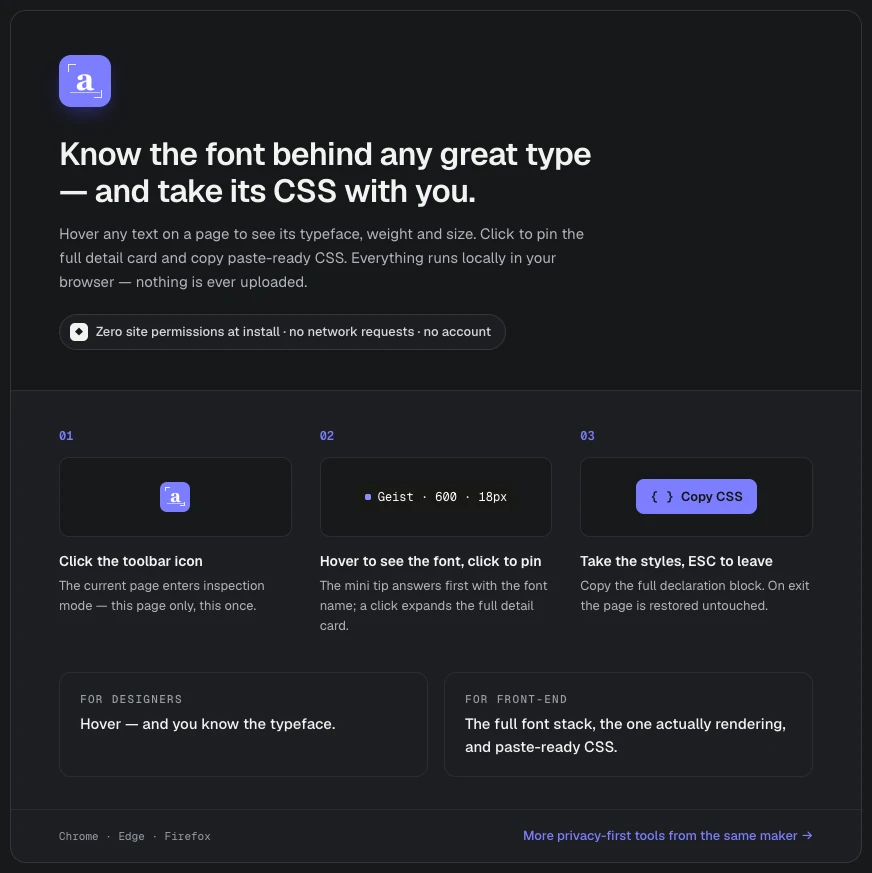
Font Finder reads the answer straight from the page's computed styles. Click the toolbar icon, press Inspect fonts on this page, and hover any text: a tooltip shows the family that actually rendered, plus its weight and size. Click the text to pin a detail card with the complete stack — rendered family marked, web fonts flagged — and copy everything as paste-ready CSS. The extension has no host permissions: the inspector is injected only into the tab where you invoked it, via Chrome's activeTab grant, it makes no network requests, and Esc restores the page untouched.
Which one should you use?
For live text, hover inspection gives you DevTools-grade accuracy at a fraction of the effort, and it answers the follow-up questions — weight, size, web font or system font — in the same glance. For lettering baked into an image, use a matcher and treat its answer as a lead to verify. Either way, distrust any answer that merely repeats the first name in the CSS stack: that is what the designer asked for, not necessarily what anyone is seeing.