How-to · Typography
How to identify a font on any website in Chrome
The short answer
Open Font Finder, click Inspect, then hover the text. A tooltip shows the typeface that actually rendered — plus its weight and size — computed locally in your browser. No screenshots, no upload, no DevTools digging.
- 1
Open the page with the font you want to identify.
- 2
Click the Font Finder icon and press Inspect.
- 3
Hover the text — the tooltip shows the rendered font family, weight and size.
- 4
Click the text to pin a detail card with the full CSS stack.
- 5
Press Esc to dismiss the inspector when you are done.
You see a typeface you like on a website and want to know what it is. The usual routes are all slow: screenshot-matching tools guess and often guess wrong, forum threads take hours, and Chrome DevTools makes you right-click, inspect, and scroll through the Computed panel for every single element. There is a faster way that also answers the question DevTools makes hard: which font in the CSS stack actually rendered.
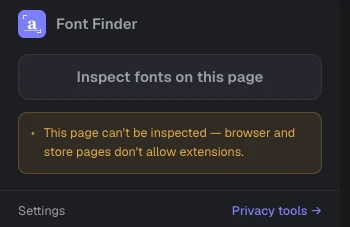
Start the inspector on the current tab
Click the Font Finder icon and press Inspect. The extension has no host permissions: the inspection layer is injected only into the tab you invoked it on, via Chrome's activeTab grant, and disappears when you dismiss it with Esc.
Hover any text to identify the font
Move your cursor over a headline, paragraph or button label. A tooltip follows your pointer showing the font family, weight and size of the text under it. There is nothing to select and nothing to configure — hovering is the whole workflow.
Trust the rendered font, not the first name in the stack
A CSS rule like font-family: Futura, Helvetica, sans-serif only tells you what the designer asked for. If Futura is not installed, the browser silently falls through to the next name. Font Finder measures which family in the stack the browser really used and reports that one, and it flags when the winner is a web font loaded by the page rather than a font on your system. This is the difference between identifying a font and guessing at one.
Pin a card for the full details
When the tooltip shows something interesting, click the text to pin a detail card in place. The card lists the complete family stack with the rendered family marked, plus weight, style, size, line height, letter spacing and color — and a one-click button that copies it all as paste-ready CSS.
Everything stays on your machine
Font inspection runs entirely locally. Font Finder makes no network requests, needs no account, and has no paid tier. When you press Esc, the inspector is removed from the page completely.
Compared with screenshot identification services, hovering is not only faster — it is exact. You are reading the page's own computed styles, so the answer is the ground truth, not a visual best-guess.