How-to · Developer
How to decode Base64 in Chrome (and encode it back)
The short answer
Copy the Base64 string, open DevKit's Base64 tab and paste it — the decoded UTF-8 text appears instantly, entirely in your browser. It tolerates base64url, missing padding and copied-in line breaks, and encodes in the other direction too. Nothing is uploaded.
- 1
Copy the Base64 string — from a header, JSON field, data URI or config value.
- 2
Click the DevKit icon in Chrome and open the Base64 tab.
- 3
Paste the string; the decoded UTF-8 text appears instantly, with no upload.
- 4
Line breaks, missing padding and the base64url alphabet are handled automatically.
- 5
To go the other way, enter plain text and copy the encoded result.
Base64 is everywhere in a developer's day: Authorization: Basic headers, JWT segments, data: URIs, API payloads, Kubernetes secrets and .env values. It is an encoding, not encryption — anyone can reverse it — but the strings you decode are often credentials or customer data, which is exactly why pasting them into a "base64 decode online" website is a bad habit. In Chrome, DevKit decodes them locally: the string never leaves your machine.
Copy the Base64 string
Grab it from wherever you found it: a JSON field, a response header in DevTools → Network, a data URI, a config file. Don't bother tidying it up first — DevKit tolerates embedded line breaks, whitespace and stripped padding, all of which are routine when a token was copied out of a log or a wrapped HTTP header.
Paste it into DevKit's Base64 tab
Click the DevKit icon, open the Base64 tool and paste. The popup recognises a Base64-shaped string and pre-selects the decode direction, then shows the result immediately. Both alphabets are accepted: standard Base64 (+/) and the base64url variant (-_) that JWTs and web APIs use.
Read the result as UTF-8
Decoding is UTF-8 safe, so JSON, accented text and non-Latin scripts come out readable instead of mangled — a common failure of quick atob() one-liners, which are byte-oriented and choke on anything above U+00FF. If the output looks like noise, the source probably wasn't text at all: an image or a compressed blob decodes to bytes, not sentences.
Encode in the other direction
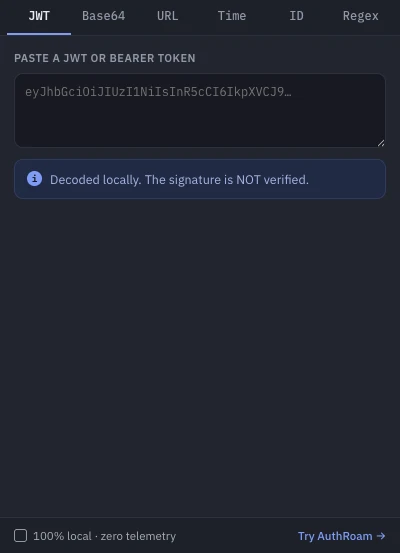
The same tab encodes too: enter plain text and copy the Base64 form — handy for Basic auth pairs, test fixtures and data URIs. For percent-encoding (%20 and friends) use DevKit's URL tab instead, which keeps encodeURIComponent and encodeURI honestly separate. And if your string is a full three-part JWT, the JWT tab decodes header, payload and expiry in one step — the signature is displayed but never verified or transmitted.
Remember what Base64 is not
Base64 provides zero secrecy. Anything "protected" only by Base64 is plain text with extra steps, so treat encoded secrets with the same care as decoded ones — and don't route them through someone else's server just to read them. DevKit runs every conversion inside the popup, requests no access to any website, and its only permission is storage, used to remember which tool you had open.