How-to · Developer
How to get and read a JWT in Google Chrome
The short answer
Find the token in an Authorization: Bearer header, localStorage or a cookie, then paste it into DevKit's JWT tab — it decodes the header, payload and expiry locally, with nothing uploaded and the signature never transmitted.
- 1
Find the JWT — usually in an Authorization: Bearer header, localStorage, or a cookie (Chrome DevTools → Network or Application).
- 2
Open DevKit and paste the token into the JWT tab.
- 3
Read the decoded header and payload, plus the live expiry countdown — all local.
- 4
The signature is never transmitted; nothing is uploaded.
A JWT is just three base64url parts — but you shouldn't paste it into a random website to read it. In Chrome you can decode it locally: DevKit shows the header, payload and expiry without the token ever leaving your machine.
Find the token
JWTs usually live in an Authorization: Bearer header, in localStorage, or in a cookie. Open Chrome DevTools → Network (or Application) and copy the token string.
Paste it into DevKit's JWT tab
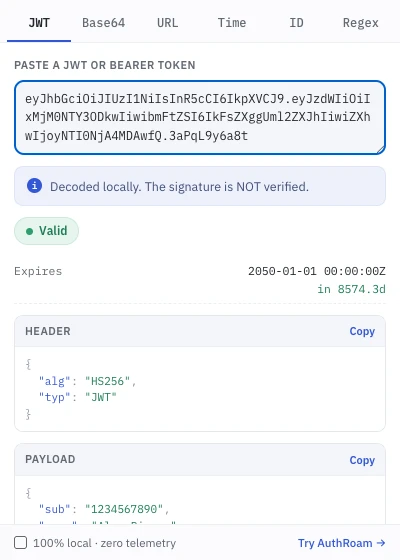
Open DevKit and paste the token. It splits the three parts and decodes the header and payload instantly — locally, with no upload.
Read the header, payload and expiry
You get the decoded header and payload JSON, a validity badge, and the expiry (exp) as an absolute time plus a live countdown. The signature is shown as unverified because DevKit never transmits it.
Capturing tokens across environments
If you keep switching between dev, staging and prod, capturing and injecting bearer tokens per environment is AuthRoam's job — same local-first, nothing-uploaded approach.