How-to · JSON
How to format JSON in Chrome — one click, per site, or everywhere
The short answer
Click the JSONPeek icon and press "Format this page" for a one-off format, or flip "Always format JSON on <site>" to have that host's responses rendered the moment they load. The extension installs with zero site access, and formatting runs entirely in your browser.
- 1
Open a page that serves raw JSON.
- 2
Click the JSONPeek icon and press "Format this page" for a one-off, local format.
- 3
To automate one host, flip "Always format JSON on <site>" in the popup and confirm Chrome's permission prompt.
- 4
To automate everywhere, open Settings and turn on "Every site".
- 5
Review or revoke any grant from Settings — revocation takes effect immediately.
Raw JSON in a Chrome tab is technically correct and practically unreadable. Formatting it shouldn't require pasting the response into some website — and it shouldn't require handing an extension permanent access to everything you browse, either. Here is how to format JSON in Chrome with exactly as much automation as you want.
Level one: format this page, once
On any tab that serves raw JSON, click the JSONPeek icon and press Format this page. The response is parsed and re-rendered locally as a folded, searchable tree. This path uses Chrome's activeTab grant — it runs once, on that tab only, with no permanent access left behind. For occasional debugging it's all you need. And because parsing happens where the bytes already are, nothing is sent anywhere: the status bar under every formatted document reads parsed locally · nothing sent.
Level two: always format this site
If you hit the same API every day, the popup offers a switch: Always format JSON on api.example.com. Flip it and Chrome itself asks you to confirm the grant — the extension can't widen its own access silently. From then on, JSON responses from that host are formatted the moment they load, while every other site stays off-limits. That's usually the sweet spot: your staging and production APIs format themselves, and the rest of your browsing is none of the extension's business.
Level three: every site
If you'd rather never see raw JSON again, open Settings and turn on Every site. JSON is then auto-formatted wherever it loads. This is the same blanket permission most JSON extensions demand at install — the difference is that here it is opt-in, and it stays your decision.
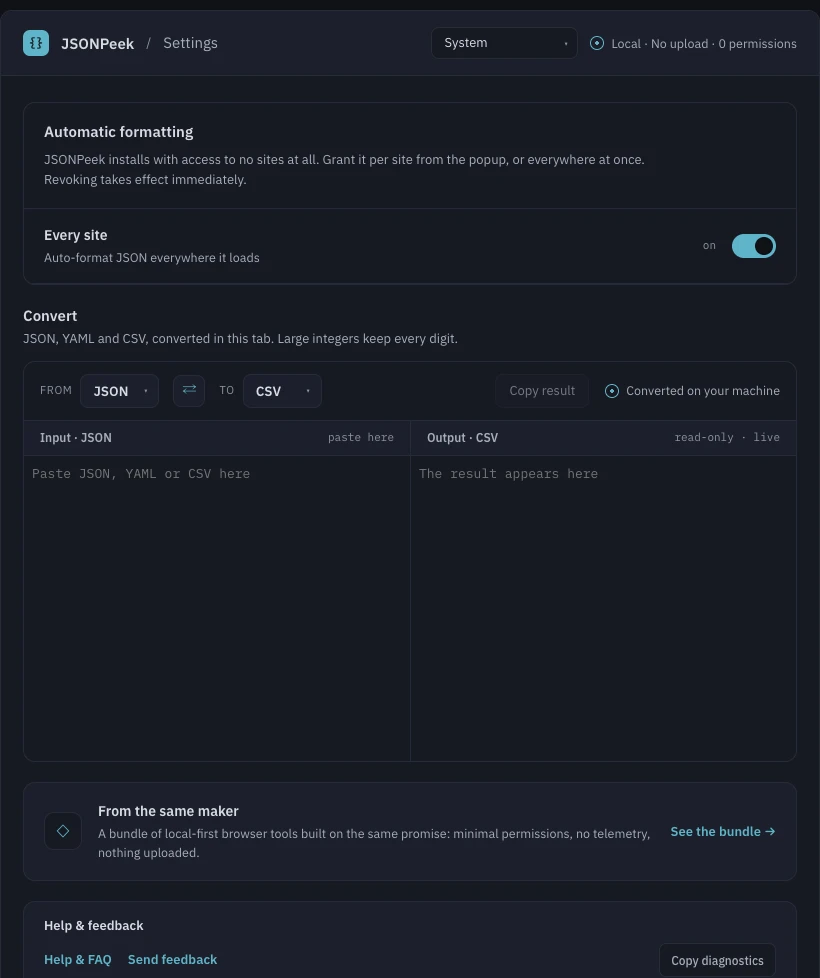
Revoking is instant
The settings page lists every host you've granted, each with a Revoke button, plus the all-sites toggle. Revoking takes effect immediately — no restart, no leftover access. If the list is empty, the extension can see nothing at all.
What you get once it's formatted
Folding with per-node summaries, search across keys and values, a raw-text toggle, and exact-number markers on integers a JavaScript double would corrupt. There's a full tour of the viewer if you want the details. One boundary worth knowing: the formatter only ever touches documents that are raw JSON — it never injects anything into ordinary web pages.