How-to · JSON
How to view JSON in Chrome as a folded, searchable tree
The short answer
Open the URL that returns JSON, click the JSONPeek icon and choose "Format this page". The raw text becomes a collapsible, searchable tree, rendered locally in the tab — the extension installs with access to no sites, and nothing is uploaded.
- 1
Open the URL that returns JSON in a Chrome tab.
- 2
Click the JSONPeek toolbar icon and choose "Format this page".
- 3
Fold and unfold objects and arrays — collapsed nodes show how many keys or items they hold.
- 4
Type in the search box to match keys and values, and jump between hits with the arrows.
- 5
Switch to "Raw" or press "Copy" whenever you need the untouched response text.
Chrome shows a JSON response the way it arrived: as one unbroken wall of text. A modest API payload is unreadable; a large one is a single line you can scroll sideways through forever. You don't need to paste it into a website to view JSON in Chrome — a viewer extension can render it in place, in the same tab.
Open the JSON and format it
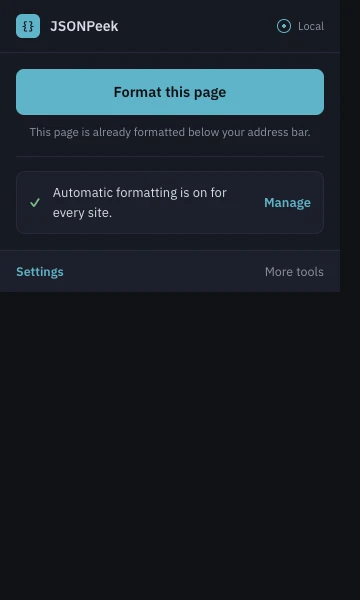
Put the endpoint URL in the address bar, or follow whatever link returns the JSON. Then click the JSONPeek icon and press Format this page. That click uses Chrome's activeTab grant: it runs once, on that tab only. The extension installs with access to no sites at all, so it cannot see any page until you ask it to.
Read the structure before the values
The formatted view is a tree. Every object and array folds, and a collapsed node summarizes itself — 12 keys, 250 items — so you can skim the shape of a response before drilling into it. Expand all and Collapse all sit in the toolbar, and the status bar keeps a running footer: the line count, a ✓ valid JSON check, and the note parsed locally · nothing sent.
Search keys and values
The search box matches key names and values alike, with previous/next arrows to jump between hits. That is usually the fastest way to answer the actual question you came with — "where is subscription_status in this thing?" — without expanding half the tree by hand.
Long numbers keep every digit
Viewers built on JSON.parse silently corrupt big integers: an ID like 12345678901234567890 comes out ending in …568000. JSONPeek parses with its own parser and displays the original digits, marking any number a JavaScript double can't hold exactly. When you need the untouched response, the Raw toggle shows it and Copy copies the original bytes.
Local .json files work too
For files opened from disk, Chrome keeps a safety switch that only you can flip: enable Allow access to file URLs on the extension's details page. The popup detects a file:// tab and hands you a copyable link straight to that setting.
Make it automatic if you want
Clicking is fine for occasional use. If you live in a particular API, you can have JSON formatted automatically per site, or everywhere — grants are optional, and revoking one takes effect immediately.