How-to · OCR
How to OCR a PDF page screenshot in Chrome
The short answer
When a PDF is scanned and its text won't select, screenshot the page and paste it into a local OCR workspace. The engine runs inside the extension, so the document is never uploaded — you get the passage back as editable text in seconds.
- 1
Open the PDF in Chrome and zoom in until the text you need is large and sharp.
- 2
Take an OS screenshot of the page or region (Win+Shift+S / Cmd+Shift+4) — Chrome's PDF viewer blocks extension overlays, so this is the reliable capture route.
- 3
Click the Image OCR icon, open "Text from an image file" and paste the screenshot with Ctrl+V.
- 4
Pick the recognition language — English, or 中文 + English for Chinese documents.
- 5
Proofread the editable result against the screenshot and fix any misread characters.
- 6
Click "Copy all" and paste the recovered text into your notes or document.
Scanned PDFs are pictures pretending to be documents: the pages render, but nothing selects and Ctrl+F finds nothing. The sites offering to "OCR your PDF online" solve that by having you upload the whole document — often a contract, a statement, a medical letter — to their servers. A screenshot workflow with a local OCR extension gets the text out without the file going anywhere.
Zoom in before you shoot
Open the PDF in Chrome and zoom until the passage you need is large and crisp on screen. Recognition quality tracks capture quality directly: a page shot at 100% zoom may come back with errors that vanish at 150%. And set expectations honestly — the local engine is at its best on clean printed type, and at its weakest on skewed scans, low contrast and handwriting.
Screenshot the page and paste it in
Take an OS screenshot of the page or region — Win+Shift+S on Windows, Cmd+Shift+4 on macOS — then click the Image OCR icon, open Text from an image file, and press Ctrl+V. One thing worth knowing: Chrome's built-in PDF viewer blocks extension overlays, so the extension's own region capture can't draw its frame over a PDF tab. The OS-screenshot-and-paste route is the reliable one, and it feeds exactly the same local pipeline. (If the PDF is rendered inside an ordinary web page viewer, region capture does work — just drag the box.)
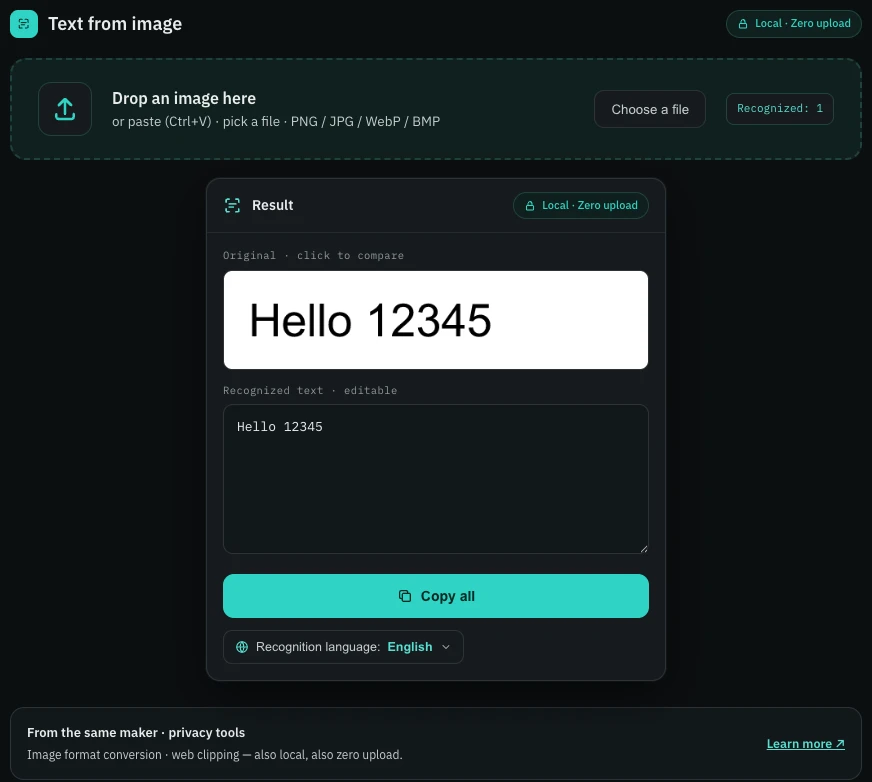
Recognize, fix, copy
The moment the screenshot lands, recognition starts — on a Tesseract engine compiled to WebAssembly and bundled inside the extension, so nothing is uploaded and it works offline. Two recognition languages ship with it: English, and 中文 + English for Chinese documents; switch in place if the first pass looks wrong. The output sits next to your screenshot in an editable box — proofread it, fix the odd character, then hit Copy all.
A page at a time — by design
This is a reading workflow, not a batch converter: perfect for the paragraph, table or single page you actually need out of a scan, and the wrong tool for turning a 200-page PDF into a text file. If what you need is a PDF's pages as images, see converting a PDF to JPG without uploading; if the text lives on a regular web page, copying text from a screenshot covers that. Whatever the source, the promise is the same: free, no account, and zero network from screenshot to copied text.