How-to · PDF
How to convert a PDF to JPG without uploading it
The short answer
Skip the upload sites. PDF to Image is a free Chrome extension that renders each page of your PDF as a JPG or PNG entirely on your device — no upload, no sign-up, and it keeps working offline.
- 1
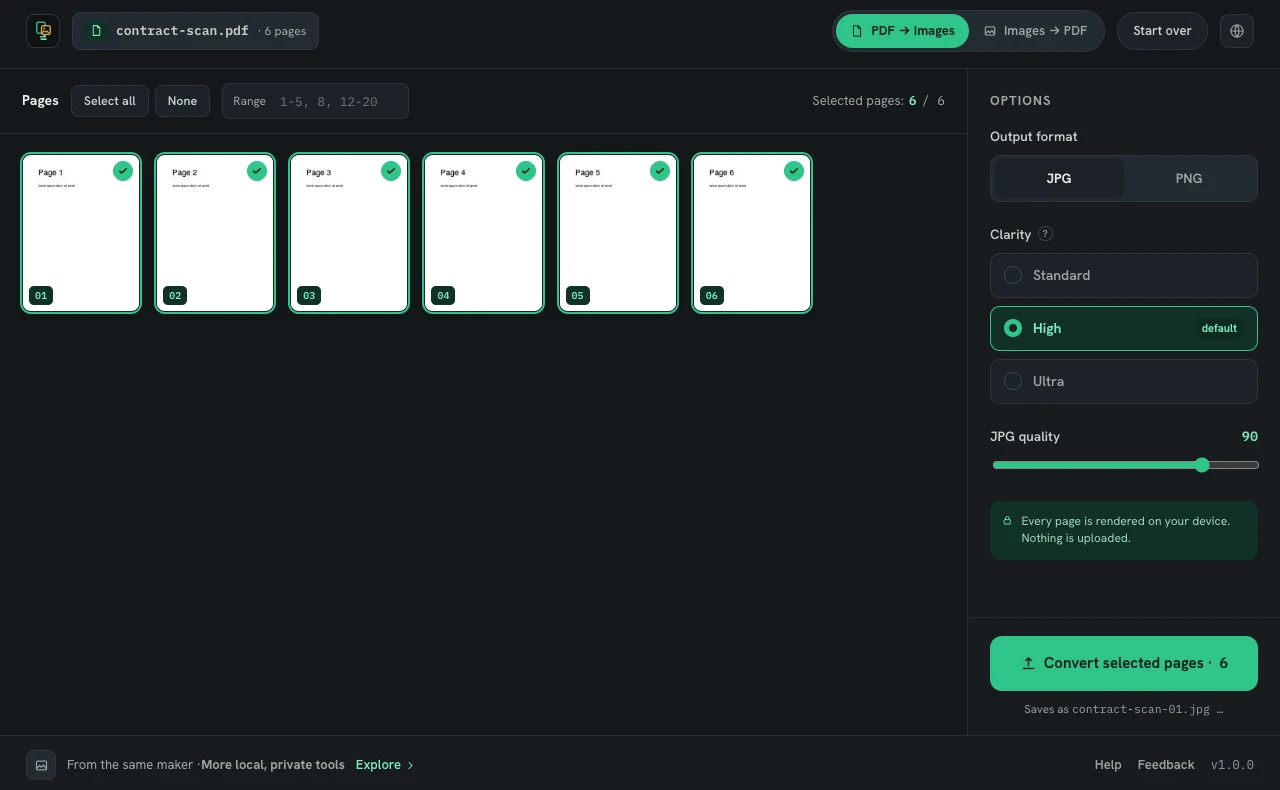
Click the PDF to Image icon in Chrome and choose “PDF → Images”, or drop the PDF straight onto the popup.
- 2
Select the pages to export — all of them, or a range like 1-5, 8, 12-20.
- 3
Set the output format to JPG and pick a clarity preset (Standard, High or Ultra).
- 4
Click “Convert selected pages”.
- 5
Save the images — each page is named after the document, e.g. contract-scan-01.jpg.
Search for “PDF to JPG” and almost every result is an upload site: you hand your document to someone else's server, wait in a queue, and trust a promise that the file gets deleted afterwards. For a contract, an invoice, an ID scan or anything with a signature on it, that is a bad trade. There is a simpler option that most people don't know exists: do the conversion inside your own browser. PDF to Image is a free Chrome extension that renders each page locally and saves it as a JPG or PNG. The file never leaves your machine — you can even run it with Wi-Fi switched off.
Open the converter and drop your PDF
Click the extension icon and choose PDF → Images, or just drop the file straight onto the popup. The workbench opens in its own tab and reads the PDF right there on the page — the previews you see are built on your device, not fetched from a server.
Pick the pages you actually need
Every page shows up as a thumbnail. Convert all of them, or use Select all, None, or a range like 1-5, 8, 12-20 to export only part of the document. For very large PDFs the extension suggests converting in batches, which keeps memory use sensible on modest machines.
Choose JPG and a clarity preset
Set the output format to JPG — or PNG if you need lossless output, which keeps small text and line art perfectly crisp. The clarity presets — Standard, High and Ultra, roughly 96, 150 and 240 dpi — control how sharply each page is rendered, and for JPG a quality slider lets you trade file size against detail. High at quality 90 is the default and a good middle ground for sharing.
Convert and save
Click Convert selected pages. Pages become available as they finish, so you don't have to wait for a long document to complete before grabbing the first few. Each image is named after the source file: contract-scan.pdf comes out as contract-scan-01.jpg, contract-scan-02.jpg and so on, ready to attach or paste wherever images are accepted and PDFs aren't.
How you can tell it's really local
Two checks, both under your control. First, the extension requests zero permissions at install — no site access, no tabs, nothing; files are processed inside its own page. Second, the airplane-mode test: disconnect from the internet and convert again. It works exactly the same, which no upload site can claim. There is no account, no paywall and no tracking either — it's free by design.
Need the opposite direction? The same extension also combines images into a single PDF, just as locally.