How-to · Research
How to research long documents faster in Chrome
The short answer
Instead of skimming a 40-page report, open ProofJump's side panel and interrogate it: ask targeted questions, jump straight to the sentences that answer them, and step through the evidence. Speed doesn't cost rigor, because every claim is anchored to the source — and gaps are flagged, not filled.
- 1
Open the ProofJump side panel on the long document.
- 2
Ask the specific questions you'd otherwise skim for.
- 3
Click citations to jump to the exact sentences and read them in context.
- 4
Use next/previous to step through every passage relevant to a question.
- 5
Note the "no source on page" flags — what the document doesn't cover.
- 6
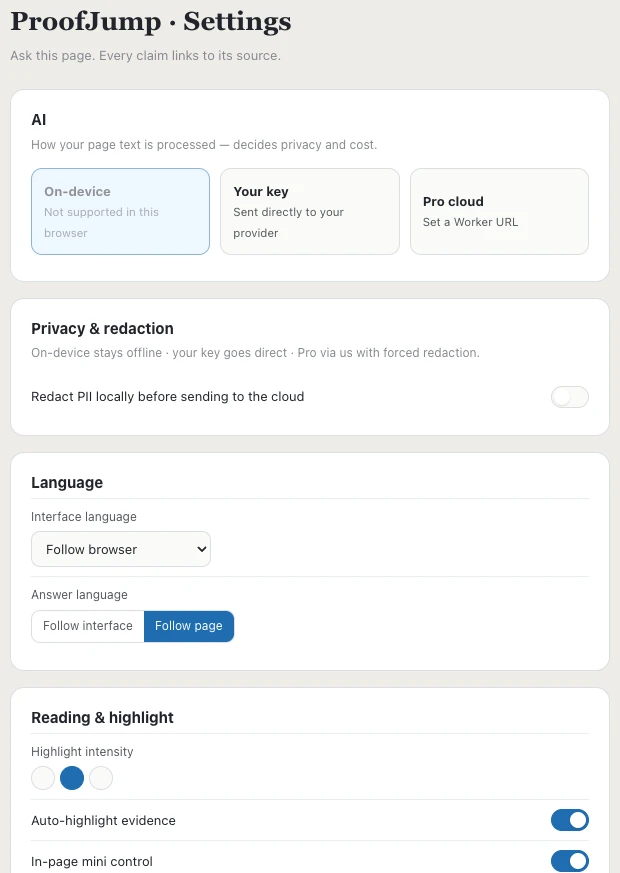
For sensitive documents, pick on-device processing (or enable PII redaction) in settings.
The slow part of research isn't reading — it's finding which parts of a long document are worth reading. Skimming a 40-page report for the three passages that matter is both slow and risky: you miss things, and you half-remember others. In Chrome, ProofJump turns that skim into a set of targeted questions whose answers point at exact sentences, so you spend your reading time only where the document earns it.
Interrogate the document, don't skim it
Open the side panel on the report, paper or documentation page and ask what you actually need to know: "What sample size did they use?" "What are the stated limitations?" "Which versions does this apply to?" Each answer comes back as claims pinned to verbatim quotes from the page — the needle, with the haystack left behind.
Jump to the evidence, then read around it
Click a citation and Chrome scrolls to the sentence, highlighted in the original text. Read the paragraph around it — that's the deep reading the passage deserves, applied only where it's warranted. When a question touches several parts of the document, step through all the evidence with next and previous instead of scrolling hopefully.
Let the gaps stop you early
The expensive research failure is assuming a document covers something it doesn't. When an answer isn't supported by the page, ProofJump flags it "no source on page" — so you find out in seconds, not after you've cited the document in a meeting. A fast, honest "it's not in here" is often the most useful result of the session.
Match the processing path to the document
Long documents are often the sensitive ones — internal reports, contracts, unpublished drafts. In ProofJump's settings you choose where the AI runs, per your comfort: on-device AI where your Chrome supports it, so the text never leaves your machine (the natural pick for confidential material); your own OpenAI, Anthropic or Google API key, sent directly to that provider and never through ProofJump's servers; or the Pro cloud. For either network path, an optional local PII redaction switch swaps emails, phone numbers, card numbers and API tokens for placeholders before anything leaves your device, then restores them locally in the answer.
It only reads the page you're on
ProofJump uses activeTab: it has no standing access to your browsing and reads a document's text only when you invoke it on that tab. It answers from that page alone — which is precisely why every answer can be walked back to a sentence you can see.