How-to · Developer
How to capture API tokens from network requests in Chrome
The short answer
Open a DevTools panel that watches the tab and collects every bearer token, cookie credential and JWT the page sends — badged by type and expiry, with the raw token masked until you reveal it. Capture, decoding and storage are 100% local; the token never leaves your browser.
- 1
Open DevTools on the tab you’re inspecting and switch to the AuthRoam panel.
- 2
Use the page so it makes API requests — captures appear with type and expiry badges.
- 3
Filter by host or path to find the token you’re after.
- 4
Select a capture to see the masked raw token and, for JWTs, the decoded claims.
- 5
If headers look incomplete, the response came from cache — hard-reload and recapture.
- 6
Copy the token where you need it, or save it as an environment; either way it never left your browser.
Sometimes you just need to see the token a web app is sending — to replay an API call in curl, to check which account a request is authenticated as, or to work out why the backend returns 401 while the frontend swears it’s logged in. The manual route is the Network tab: find a request, expand the headers, copy the Authorization value. That works, and it’s tedious by the third time. A capture panel does the watching for you — locally.
Let the panel watch the tab
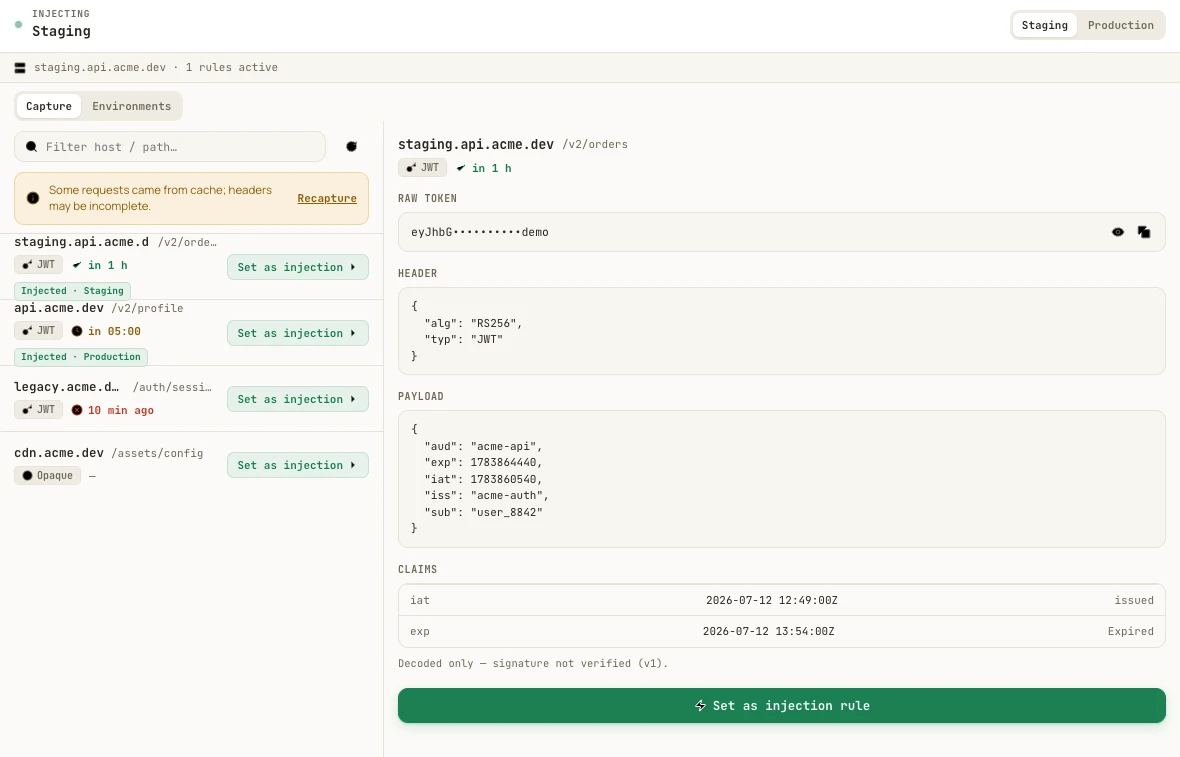
Open AuthRoam’s panel in DevTools on the tab you’re inspecting. As the page makes requests, the panel collects the credentials attached to them — Authorization bearer tokens, cookie credentials and JWTs — into one list with host and path, plus a filter box for when the app is chatty.
Identify tokens at a glance
Each capture is badged with what it is and how long it has left. JWTs are decoded locally, so expiry shows as “in 1 h” or is flagged as expired; a token that isn’t a JWT is labeled Opaque rather than guessed at. That single glance answers most “is my session stale?” questions before you open anything else.
Inspect the raw token without flashing it
Selecting a capture shows the raw token masked, with reveal and copy controls — useful when you’re screen-sharing or recording. For JWTs, the decoded header, payload and claims sit alongside. Note the panel’s own caveat here: tokens are decoded only, the signature is not verified — inspection, not authentication.
The cache caveat
An honest limitation: when Chrome serves a response from cache, the request may never hit the network with complete headers, and a capture can be partial. The panel tells you when that happened and offers a recapture instead of silently showing a partial picture. If a token you expect is missing, force a real request — hard-reload, or disable cache in DevTools — and capture again.
A token spy that only spies for you
A tool in this category handles live credentials, so where it sends data is the entire question. AuthRoam sends it nowhere: capture, decoding and storage are 100% local, with zero telemetry — no analytics, no sync server, and a license validated locally. It also isn’t a background siphon: it captures on the tab whose DevTools you opened, not across your browsing, and you control which domains it may act on.
From captured to useful
Once captured, a token stops being a one-off copy-paste. Save it as an environment — dev, staging, prod — and switch which one is active later without logging in again.