How-to · Developer
How to switch API auth tokens across environments in Chrome
The short answer
Capture the Authorization header once in DevTools, save it as an environment (dev, staging, prod), then switch the active token per environment — no re-login. Tokens are decoded and stored locally, with zero telemetry.
- 1
Open DevTools and capture the Authorization header from a request.
- 2
Save the decoded token as an environment (dev/staging/prod).
- 3
Switch the active environment to change which token is used — no re-login.
- 4
Scope AuthRoam to authorized domains in settings; everything stays local.
Testing an API across dev, staging and production usually means logging in three times and copy-pasting bearer tokens. In Chrome you can capture each environment’s token once and switch between them from a single list — while decoding the JWT locally to check its claims and expiry.
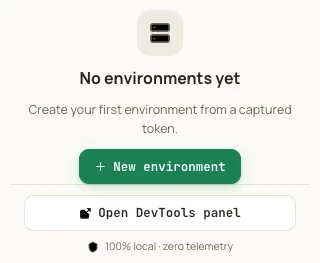
Capture a token from DevTools
Open DevTools and let AuthRoam capture the Authorization header from a request. It decodes the JWT locally so you can read the payload and see when it expires — nothing is sent anywhere.
Save it as an environment
Save the captured token as an environment — dev, staging, prod. Each environment keeps its own token, and the popup warns you when the active one is about to expire.
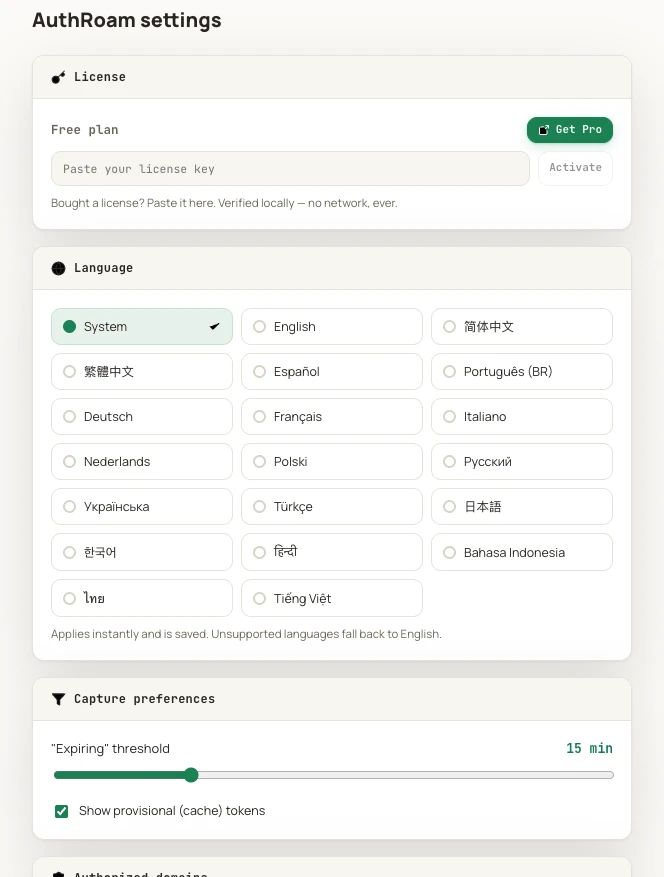
Switch the active token
Pick an environment and its token becomes the active one for matching requests, so you move from staging to prod without logging in again. Scope it to authorized domains in settings so it never touches sites you didn’t list.
Everything stays local
AuthRoam is 100% local with zero telemetry: capture, decode and switching all happen in your browser, and tokens never leave it.