How-to · Performance
How to check which Chrome extensions are taking up memory
The short answer
Press Shift+Esc (Windows/Linux) or open ⋮ → More tools → Task manager, then sort by Memory footprint. Rows prefixed “Extension:” are your extensions. In most browsers, though, the heavy rows turn out to be tabs — and those you can reclaim without closing anything.
- 1
Press Shift+Esc (Windows/Linux) or open ⋮ → More tools → Task manager.
- 2
Click the “Memory footprint” column to sort largest-first.
- 3
Scan for rows prefixed “Extension:” — those are your extensions.
- 4
Test a suspect by toggling it off at chrome://extensions, then compare.
- 5
If tabs dominate the list instead, suspend idle tabs rather than hunting extensions.
When Chrome starts crawling, extensions get blamed first — but Chrome will tell you exactly who is using what. The browser ships its own Task Manager, separate from your operating system's, and it breaks memory down per tab, per extension and per internal process. Two minutes there usually settles the argument.
Open Chrome's built-in Task Manager
Press Shift+Esc on Windows or Linux, or go to ⋮ → More tools → Task manager on any platform (on a Mac it's also under the Window menu). Each row is a separate process: your tabs, your extensions — prefixed with Extension: — plus the GPU process and the browser itself.
Sort by memory footprint
Click the Memory footprint column header to sort largest-first, then scan for the Extension: rows. Don't be surprised if an extension appears, vanishes and reappears as you watch: modern (Manifest V3) extensions run a service worker that Chrome unloads when idle, so a well-built one may show nothing at all most of the time.
Read the numbers fairly
Tens of megabytes is normal for an extension that's actually doing something. What deserves suspicion is an extension holding hundreds of megabytes at rest, or one pinned near the top of the CPU column. To test a suspect, don't use End process — that only kills it until it restarts. Toggle it off at chrome://extensions, browse for a while, and compare.
It's usually the tabs, not the extensions
Here's what the sorted list shows almost everyone: the heavy rows are tabs. Every tab is its own process, and a modern web app can idle at several hundred megabytes — so thirty open tabs will outweigh your whole extension list combined. If that's what you see, disabling extensions won't fix it.
Reclaim the tab side automatically
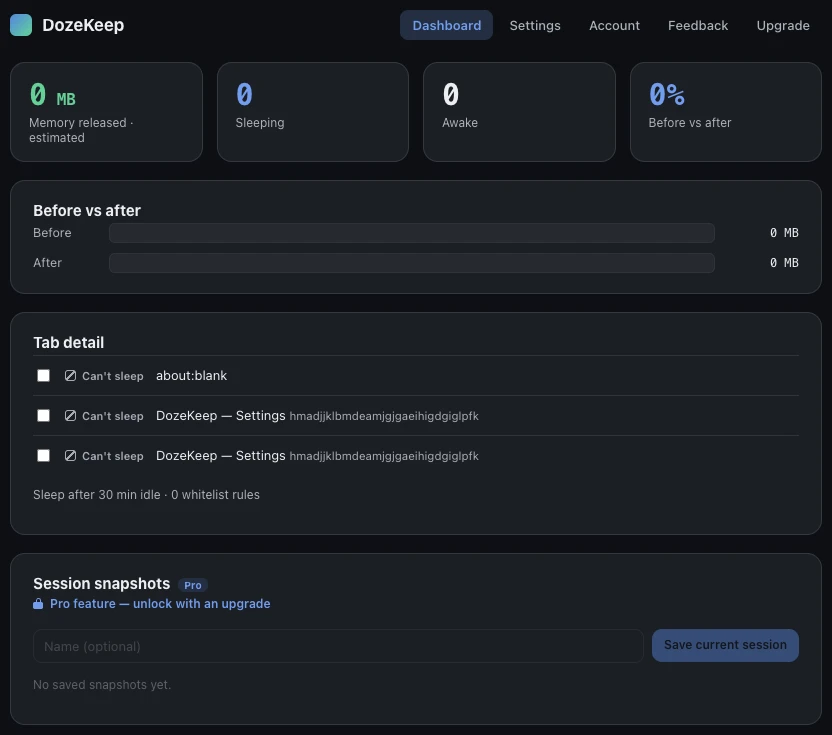
A tab suspender fixes the tab side without closing anything. DozeKeep puts tabs to sleep after an idle timer you choose, freeing up to 90–95% of each tab's memory, and its dashboard shows a before-vs-after estimate so you can verify the effect in the same spirit as the Task Manager. It runs locally, with no all-sites access and no account. Here's the full setup: how to suspend inactive Chrome tabs.