How-to · Tabs
OneTab Chrome extension: how it works, and an alternative that keeps tabs open
The short answer
OneTab saves memory by closing every tab into a list of links — great for archiving, but your layout, scroll positions and in-page state are gone. A tab suspender frees comparable memory while every tab stays in place. Here's the honest trade-off and how to set up the suspend-in-place workflow.
- 1
Decide what those tabs are: an archive to file away (OneTab's strength) or a working set to keep (a suspender's).
- 2
For the working set, install a tab suspender like DozeKeep — your tab strip stays exactly as it is.
- 3
Set the idle timer in Settings, e.g. sleep tabs after 30 minutes idle.
- 4
Leave smart skips on so audio, pinned tabs and the active tab never sleep, and whitelist must-stay-live sites.
- 5
Click any sleeping tab to wake it at the same URL and scroll position.
The OneTab Chrome extension has one famous move: click its icon and every tab in the window collapses into a single list page. Memory drops immediately — because the tabs are genuinely closed and only their URLs are kept. For a lot of people that's exactly right. For the rest, the same memory savings are available without giving up the tab strip.
What OneTab does well
As a declutter-and-archive tool it's excellent: one click turns a research binge into a tidy list you can restore item by item, export, or share as a page of links. If you treat those tabs as “read later”, the list is the feature.
The trade-off: your tabs are closed
Restoring from the list reopens each page from scratch. Scroll position, half-written form input and in-page state are gone; the page simply loads fresh. Your window layout — tab order, groups, what was pinned where — lives on only as a flat list, and that list page becomes one more thing to manage. If the tabs were your working set rather than an archive, you've traded memory for your workspace.
The alternative: suspend tabs in place
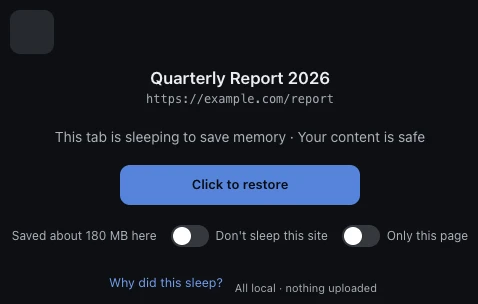
A tab suspender frees memory the other way around. Idle tabs go to sleep where they stand: each one keeps its spot on the tab strip, showing a lightweight placeholder with its title and icon instead of a live page. Click it and it wakes at the same URL and scroll position. The memory effect is in the same league — a slept tab releases up to 90–95% of what it held — but nothing about your layout changes.
Make it automatic
With DozeKeep you set an idle timer once — say 30 minutes — and stop thinking about it. Smart skips keep tabs playing audio, pinned tabs and the active tab awake; a per-site whitelist protects mail or dashboards. It's local-first, with no all-sites access and no account. The full setup is in how to suspend inactive Chrome tabs.
Which should you pick?
Honest answer: OneTab if you want to sweep tabs into an archive and move on; a suspender if you want today's fifty tabs still open tomorrow, laid out exactly as you left them, without the memory bill. Plenty of people run both — OneTab as the filing cabinet, suspension for the live desk.