How-to · Recovery
Recovering lost tabs in Chrome: shortcuts, history, and a session extension
The short answer
Press Ctrl+Shift+T (⌘+Shift+T on Mac) to reopen the last closed tab — repeat it to walk further back, including whole windows. ⋮ → History → Recently closed restores crashed windows in one click. For the cases those miss, a session-snapshot extension keeps its own restorable copy.
- 1
Press Ctrl+Shift+T (⌘+Shift+T on Mac) — repeat to walk back through closed tabs and whole windows.
- 2
Open ⋮ → History → Recently closed and restore entries like “14 tabs” in one click.
- 3
After a crash, click Restore on the relaunch prompt before opening anything else.
- 4
Set chrome://settings/onStartup to “Continue where you left off”.
- 5
Install a session extension and snapshot your windows before risky, tab-heavy sessions.
- 6
If disaster strikes anyway, restore the snapshot — every window and tab it captured comes back.
A window closed by mistake, a crash mid-research, a restart that came back empty — lost tabs are almost always recoverable, and usually with what Chrome already ships. Work through the built-ins first; then set up a safety net for the cases they don't cover.
First: Ctrl+Shift+T
Press Ctrl+Shift+T (⌘+Shift+T on a Mac) and Chrome reopens the most recently closed tab. Press it again and it keeps walking backwards — and it restores whole closed windows too, with all their tabs. This one shortcut resolves most “lost tab” moments on the spot.
The Recently closed list
Open ⋮ → History and look at Recently closed: entries like “14 tabs” are entire windows you can restore in one click. For anything older, chrome://history lists every page by day, searchable.
After a crash
When Chrome relaunches after a crash it offers a Restore button — click it before opening new pages. If you missed it, the session usually still sits under History → Recently closed. And set chrome://settings/onStartup to Continue where you left off so a normal restart never loses tabs in the first place.
Where the built-ins fail
Chrome keeps exactly one thread of recent history, and it's fragile: dismiss the restore prompt and open a few tabs, and the crashed session gets buried; a second window is easy to overlook and lose; clearing history wipes the trail entirely. This is the gap that session extensions — the category people know from Session Buddy — exist to fill: they keep their own copy of your session, independent of Chrome's.
Snapshots as insurance
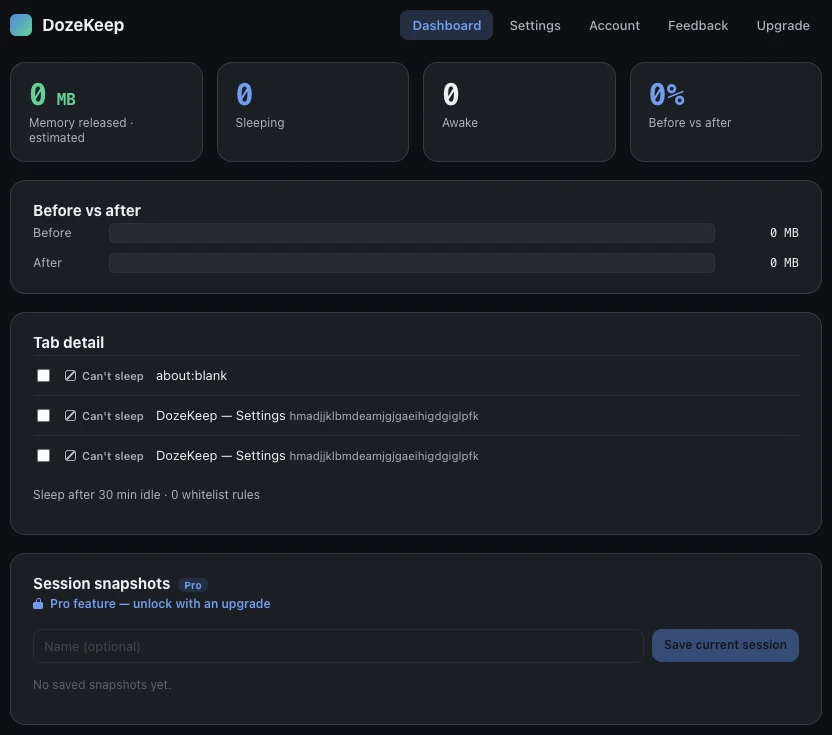
DozeKeep, a tab suspender, treats this as core: sessions are snapshotted so a crash never costs you a window of research, and restore brings back your windows and tabs. On Pro you can also save named snapshots — “grant research, all 3 windows” — and keep a history of them. Everything stays on your machine (no all-sites access, no account); an optional end-to-end-encrypted backup can carry sessions across devices, and even then the encryption means nobody else can read them.
One honest limit: no extension can recover tabs it never saw. Install the safety net before the crash, not after. Snapshots pair well with saving tabs for later, too.