How-to · JSON
How to set up a Chrome JSON viewer extension — without giving it every site
The short answer
Most JSON viewers demand "read and change all your data on all websites" the moment you install them. It doesn't have to work that way: install JSONPeek, which starts with access to no sites, format JSON pages with one click, and grant automatic formatting only to the hosts you actually choose.
- 1
Install JSONPeek — note that Chrome's install prompt asks for access to no sites.
- 2
Open any JSON response and click the toolbar icon, then "Format this page".
- 3
Want a host formatted automatically? Flip its switch in the popup and confirm Chrome's prompt.
- 4
Turn on "Every site" in Settings only if you truly want JSON formatted everywhere.
- 5
Audit the Settings page any time: every grant is listed, and Revoke acts immediately.
Search the Chrome Web Store for a JSON viewer and you'll find dozens that do roughly the same thing — and nearly all of them ask for the same alarming price: permanent access to every site you visit. That's the permission that lets an extension read your banking pages and your email, granted so it can indent API responses. A JSON viewer needs to see JSON. It does not need to see everything.
Check the install prompt, not the marketing
The honest test of a Chrome JSON viewer extension is what Chrome itself says when you add it. JSONPeek installs with no host permissions and no content scripts — there is no "read data on all websites" line to accept, because it hasn't asked for any site. Until you act, it cannot see a single page.
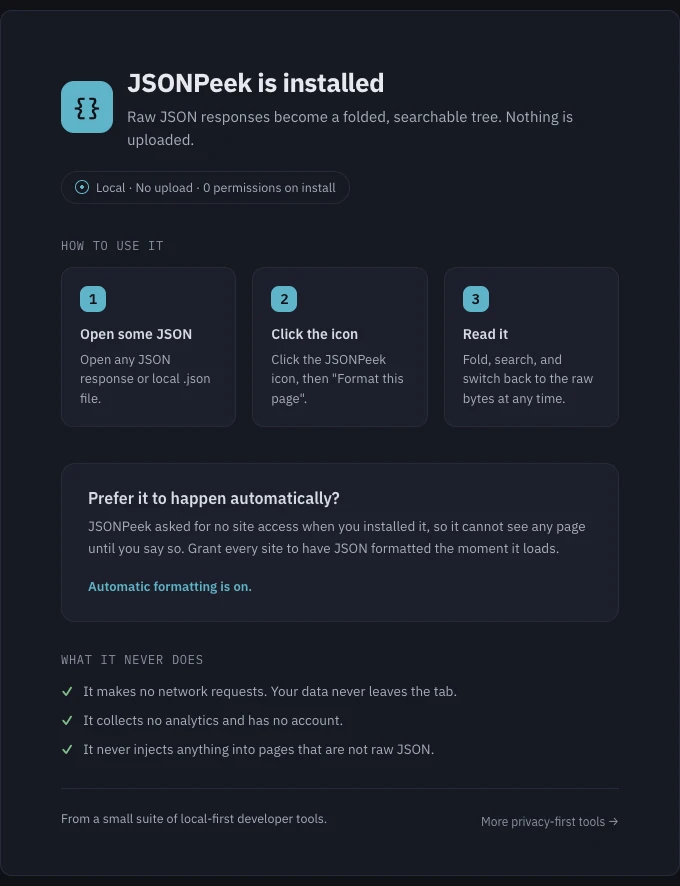
Format on demand with one click
Open any JSON response, click the toolbar icon, press Format this page. Chrome's activeTab mechanism grants access to that one tab, once. You get the full viewer — a foldable tree, search over keys and values, a raw toggle, and exact-digit rendering of long numbers — with no standing access created. The viewer walkthrough covers what's inside.
Grant exactly the automation you mean
Clicking per page gets old on an API you use daily, so the popup offers Always format JSON on that host — and Chrome asks you to confirm each grant. Prefer zero friction everywhere? The settings page has an explicit Every site switch. Either way the grant is visible in Settings with a Revoke button beside it, and revoking takes effect immediately. The default is nothing; everything beyond that is a decision you made and can unmake.
Hold it to its privacy claims
The extension's own ground rules are checkable: it makes no network requests, so your JSON never leaves the tab; it collects no analytics and has no account; and it never injects anything into pages that are not raw JSON. Every formatted page ends with the status line parsed locally · nothing sent. It's free, works in Chrome and Edge, and ships in nine languages — but the reason to pick it is the permission model: a viewer that starts blind and only ever sees what you show it.