How-to · PDF
How to combine images into one PDF in Chrome
The short answer
Open PDF to Image, switch to Images → PDF, drop your JPG or PNG files, drag them into order and save — one PDF, assembled entirely on your device. No upload site, no sign-up, no printing tricks.
- 1
Click the PDF to Image icon in Chrome and choose “Images → PDF”, or drop your images onto the popup.
- 2
Add JPG or PNG files — each image becomes one page.
- 3
Drag the cards to set the page order; remove or add images as needed.
- 4
Pick a page size, or “Fit to image” to keep each picture's exact dimensions.
- 5
Save the finished PDF — it is assembled entirely on your device.
Receipts for an expense report, photographed pages of a signed form, screenshots for a hand-off — sooner or later you need to send a stack of images as one tidy PDF. The usual answers are an upload site (your photos on someone else's server) or the print-dialog trick (one image at a time, with margins you didn't ask for). In Chrome there is a cleaner way: PDF to Image is a free extension that assembles the PDF locally. Your pictures never leave your device, and the whole thing works offline.
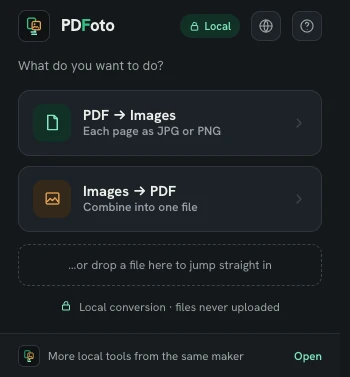
Switch to Images → PDF
Click the extension icon and choose Images → PDF — the same tool that exports PDF pages as images also goes the other way. You can also drop image files straight onto the popup to jump directly into the workbench.
Add your images and put them in order
Drop in your JPG or PNG files. Each image becomes one page, and the page order is yours: drag any card to reorder, remove the ones that don't belong, and add more at any point — the counter keeps track as the stack grows. If a file is in a format the tool doesn't support yet, it is skipped with a clear note while the rest are added as usual; nothing fails silently.
Choose the page size
Pick a page size for the document, or use Fit to image so every page matches the exact dimensions of its picture. Fit to image is the right choice for screenshots, which look wrong when scaled or padded onto letter-size pages; a fixed page size is better when the PDF is headed for print.
Save your PDF
Confirm, and the PDF is assembled on your device — the note in the workbench says it plainly: your images stay with you. Save the file and it's ready to email, upload to a portal, or archive. One attachment instead of fourteen.
Why not just print to PDF?
Chrome's print dialog can turn a single image into a PDF, but combining many images that way means printing them one by one and merging afterwards — and you give up control over sizing. Upload-based combiners fix the workflow but at the cost of sending personal photos to a server you don't control and can't audit. A local extension gives you both halves: many images in, one PDF out, zero upload. PDF to Image requests no permissions at all at install, works with no internet connection, and has no account, no paywall and no tracking.
Going the other way — pulling pages out of a PDF as images — works in the same extension: see how to convert a PDF to JPG without uploading it.