How-to · PDF
How to convert a PDF to PNG in Chrome (lossless, no upload)
The short answer
Use PDF to Image, a free Chrome extension that renders each PDF page as a lossless PNG entirely on your device. Pick the pages, pick a clarity preset, convert — no upload site, no sign-up, and it works offline.
- 1
Click the PDF to Image icon in Chrome and choose “PDF → Images”, or drop the PDF onto the popup.
- 2
Select the pages to export — all of them, or a range like 1-5, 8, 12-20.
- 3
Set the output format to PNG and pick a clarity preset (Standard, High or Ultra).
- 4
Click “Convert selected pages”.
- 5
Save the PNGs — each page is named after the document, e.g. spec-sheet-01.png.
If you're searching for a PDF to PNG converter rather than a PDF-to-JPG one, you probably care about quality. PNG is lossless: small text stays sharp, thin lines in diagrams don't smear, and there are none of the compression artifacts JPG leaves around letters. That matters when a page is headed into a slide deck, documentation, or anywhere it will be read rather than glanced at. The catch is that most converters in the search results are upload sites — your document goes to someone else's server first. There's a cleaner way: PDF to Image is a free Chrome extension that renders each page as a PNG locally, inside your own browser. Nothing is uploaded, and the conversion keeps working with Wi-Fi switched off.
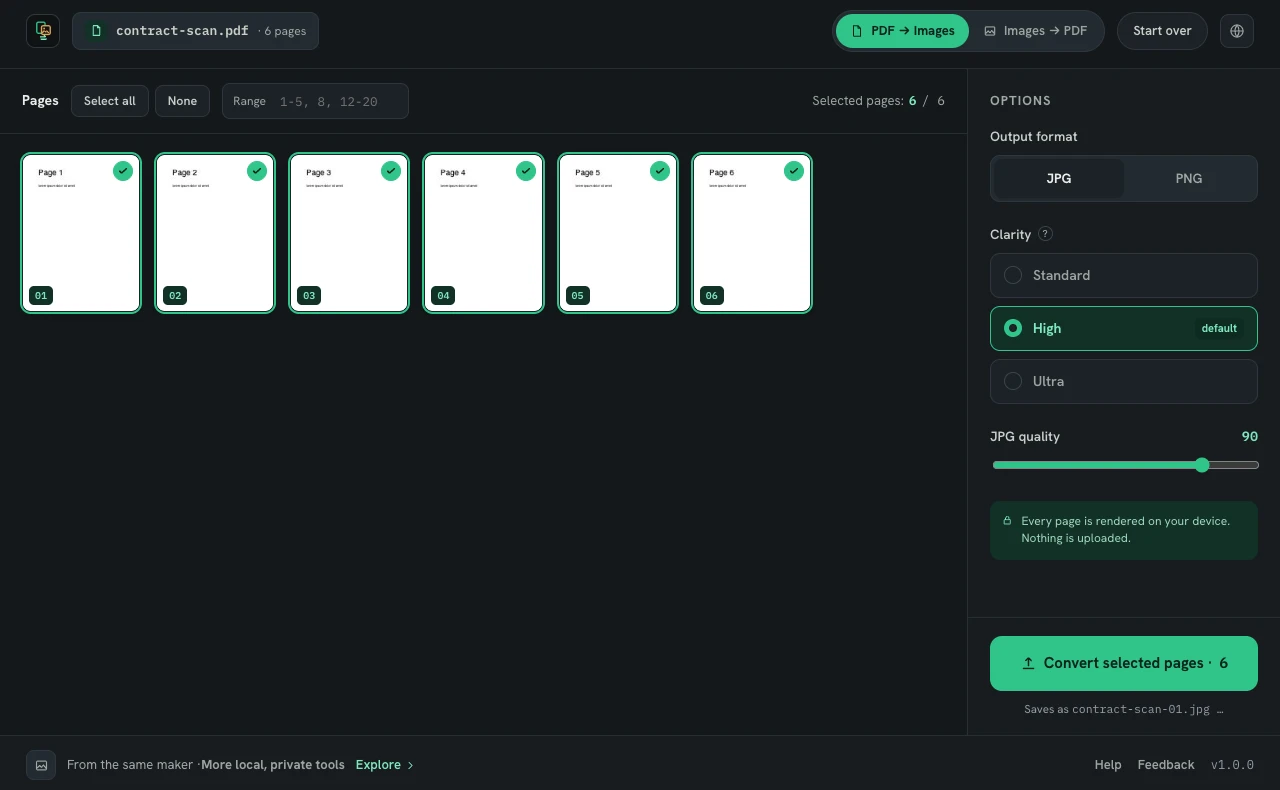
Open the converter and drop your PDF
Click the extension icon and choose PDF → Images, or drop the file straight onto the popup. The workbench opens in its own tab and builds a thumbnail for every page right there — the previews are rendered on your device, not fetched from a server.
Pick the pages you need
Convert the whole document, or use Select all, None, or a range like 1-5, 8, 12-20 to export only part of it. For very large PDFs the extension suggests converting in batches, which keeps memory use sensible.
Choose PNG and a clarity preset
Set the output format to PNG. The clarity presets — Standard, High and Ultra, roughly 96, 150 and 240 dpi — control how finely each page is rendered. Because PNG is lossless there's no quality slider to fiddle with: whatever the renderer draws is exactly what you get. Ultra is worth it for pages with dense text or fine line art; expect noticeably larger files than JPG in return for the crispness.
Convert and save
Click Convert selected pages. Pages become available as they finish, and each image is named after the source file — spec-sheet.pdf comes out as spec-sheet-01.png, spec-sheet-02.png and so on.
PNG or JPG — a quick rule of thumb
Choose PNG for text-heavy pages, diagrams, tables and anything that will be zoomed or read closely. Choose JPG for photo-heavy pages and scans where a smaller file matters more — the PDF-to-JPG walkthrough covers that path. You can switch formats freely before converting.
How you can tell it's really local
The extension requests zero permissions at install — no site access, no tabs, nothing. And you can run the airplane-mode test: disconnect from the internet and convert again; it works exactly the same. No account, no paywall, no tracking.