How-to · PDF
How to convert a JPG to PDF in Chrome (no upload)
The short answer
Open PDF to Image, switch to Images → PDF, drop the JPG, pick a page size — or Fit to image — and save. The PDF is assembled on your device: no upload site, no sign-up, no print-dialog margins.
- 1
Click the PDF to Image icon in Chrome and choose “Images → PDF”, or drop the JPG onto the popup.
- 2
Add your JPG — one image becomes a one-page PDF; add more if the document has several pages.
- 3
Pick a page size, or “Fit to image” to keep the picture's exact dimensions with no margins.
- 4
Save the PDF — it is assembled entirely on your device.
A JPG-to-PDF converter is usually needed at the worst moment: a portal that only accepts PDF, a visa or job application, an expense system staring at your photographed receipt. And the file in question — a signed form, an ID scan, a medical document — is exactly the kind of thing you shouldn't be feeding to an upload site. Chrome's print-to-PDF trick sort of works, but it forces the image onto letter-size paper with margins you didn't ask for. The cleaner answer is a free extension that does the conversion locally: PDF to Image turns a JPG (or PNG) into a PDF entirely on your device, with the page size under your control.
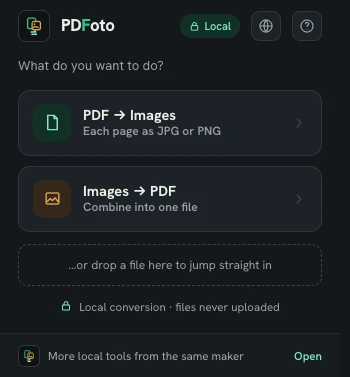
Switch to Images → PDF
Click the extension icon and choose Images → PDF — the same tool that exports PDF pages as images also runs in reverse. You can also drop the JPG straight onto the popup to jump into the workbench.
Drop in your JPG
One image becomes a one-page PDF — which is the whole job most of the time. If it's a multi-page situation, a photographed form with three pages, say, add all three and drag the cards into order; each image becomes one page.
Choose the page size
This is the part the print dialog gets wrong. Pick a standard page size if the PDF is headed for print, or choose Fit to image so the page matches the exact dimensions of your picture — no white borders, no scaling, no surprise cropping. Fit to image is the right default for scans, screenshots and photographed documents.
Save the PDF
Confirm, and the file is assembled on your device — the workbench says it plainly: your images stay with you. The result is a normal PDF, ready for whatever portal insisted on the format.
Why local matters for this file in particular
Think about what people convert to PDF: signed contracts, IDs, certificates, receipts. Upload converters process precisely the documents you'd least want on an unknown server. This extension requests zero permissions at install — no site access, no tabs — and you can verify the privacy claim yourself: switch off Wi-Fi and convert again. It works identically, because nothing was going to a server in the first place. It's free, with no account and no tracking.
Got a whole folder of images to bundle instead of one file? The same tool handles that too — see how to combine images into one PDF. And it converts in the other direction as well, from PDF back to JPG.