How-to · PDF
How to merge PDF files offline in your browser
The short answer
PDF Merge is a free Chrome extension that combines your PDFs locally: drop the files, drag them into order and click Merge. Files are never uploaded — it works with no internet connection at all.
- 1
Click the PDF Merge icon in Chrome and choose “Merge PDF”, or drop your PDFs onto the popup.
- 2
Add the files — each shows its page count and size.
- 3
Drag the handles to set the order; the list order is the merge order.
- 4
Check the summary: files, total pages and estimated size.
- 5
Click “Merge PDFs” and save the result, merged.pdf.
Merging PDFs is the classic “just use an upload site” task — and exactly the task where you shouldn't. The documents people merge are contracts, bank statements, medical letters, application packets. The moment they go to a merge site, they sit on a server you don't control, under a retention policy you can't verify. In Chrome, merging can happen entirely on your own machine instead. PDF Merge is a free extension that combines, splits and reorganizes PDFs locally — the badge in its header says it outright: Local only · files never uploaded.
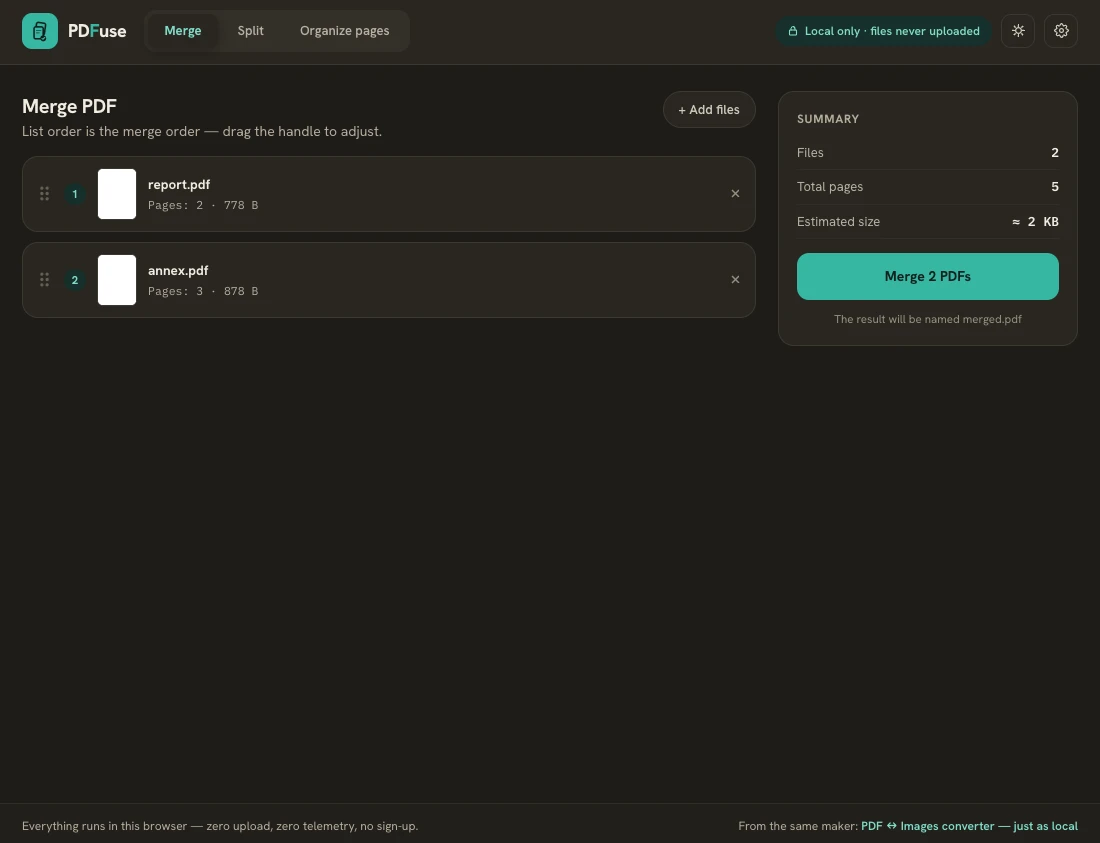
Open Merge and add your files
Click the extension icon and choose Merge PDF, or drop your PDFs straight onto the popup. Each document appears in a list with its page count and size, so you can spot a wrong file before it ends up in the middle of the result.
Put them in order
The list order is the merge order. Drag the handle on any row to move a document up or down, and remove one with a click if it doesn't belong. The summary panel keeps a running total — how many files, how many pages, and the estimated size of the result — so there are no surprises after the merge.
Merge and save
Click Merge PDFs and save the combined document; it comes out named merged.pdf. That's the whole workflow: no queue, no sign-up wall, no “file too large — upgrade” negotiation with a stranger's server. Because nothing travels over the network, a hundred-megabyte scan merges as readily as a two-page letter — the only limit is your own machine.
Password-protected PDFs work too
If one of your files is encrypted, PDF Merge asks for its password and uses it locally to open the file — the password and the document go nowhere else. That is a real decrypt happening on your device, not a server round-trip pretending to be one.
The offline test
Because everything runs in the browser, you can verify the privacy claim yourself instead of taking it on faith: disconnect from the internet and merge again. It works identically. The extension requests no site access at install, ships no telemetry, needs no account, and has no paywall — free by design.
Need the reverse operation? The same extension also splits a PDF into separate files, and its Organize view lets you reorder, rotate or delete individual pages before export.