How-to · PDF
How to split a PDF into separate files
The short answer
Open PDF Merge in Chrome, choose Split PDF, add page ranges like 13-24 and click Split — each range becomes its own file, produced entirely in your browser. Nothing is uploaded, and password-protected files are opened locally.
- 1
Click the PDF Merge icon in Chrome and choose “Split PDF”, then drop your document in.
- 2
If the file is password-protected, enter the password — it is only used locally to open the file.
- 3
Pick a method: “By ranges” for several output files, or “Extract pages” for one new PDF.
- 4
Add ranges like 13-24, or a selection like 1-5, 8, 12-20.
- 5
Click Split and download the results — individually or all together as a ZIP.
A scanned binder where one chapter needs to go to one person. A statement pack where every month should be its own file. A 40-page export when the portal only accepts 10 pages at a time. Splitting is the mirror image of merging — and it has the same privacy trap: most “split PDF” search results want you to upload the document first. PDF Merge is a free Chrome extension that splits locally instead. The file is opened, cut apart and repackaged in your browser, and it never touches a server.
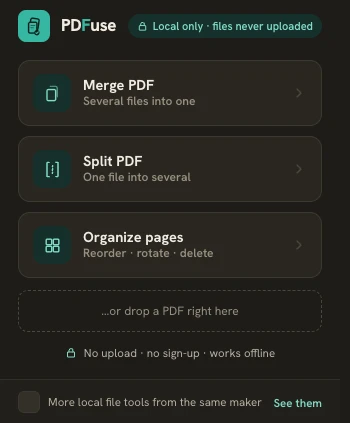
Choose Split PDF and drop your document
Click the extension icon and pick Split PDF, then drop the file in. If the PDF is password-protected, you'll be asked for the password — it is used locally, only to open the file, and goes nowhere else.
Split by ranges…
Add one page range per output file: 1-12, 13-24, 25. Ranges are shown as chips you can remove and re-add until the cut is right, and the button tells you exactly what you'll get — “Split into 3 files”. Download each result individually, or grab all of them at once as a ZIP.
…or extract pages into one new PDF
The second split method is Extract pages: type a selection like 1-5, 8, 12-20 and the selected pages become one new PDF. The rule of thumb — use By ranges when you want several files out of one document, and Extract pages when you want a single trimmed file with just the pages that matter.
Tidy up with Organize pages
If the document needs more surgery than a clean cut — a page scanned sideways, a blank page in the middle, two pages in the wrong order — the Organize pages view handles it: reorder, rotate and delete individual pages, then export the cleaned-up file.
Nothing is uploaded — check it yourself
The extension requests no site access at install, ships zero telemetry and needs no sign-up. Because the work happens in the browser, the claim is testable: turn off your connection and split again. It behaves identically offline, which is something no upload-based splitter can offer. It's free, with no paywall.
Putting documents together instead of taking them apart? See how to merge PDF files offline in your browser — same extension, same local-only rules.