How-to · PDF
How to remove a password from a PDF locally (when you know it)
The short answer
If you know the password, open the PDF in PDF Merge in Chrome, unlock it — decryption happens on your device — and export an unencrypted copy. No honest tool can remove a password you don't know, and nothing here is uploaded.
- 1
Click the PDF Merge icon in Chrome, choose “Organize pages”, and drop the protected PDF in.
- 2
Enter the password and click “Unlock” — decryption happens on your device; nothing is sent anywhere.
- 3
Leave the pages as they are, or tidy them up (reorder, rotate, delete) while you're here.
- 4
Click “Export PDF” — the exported copy is unencrypted and opens without a password prompt.
- 5
Keep the original protected file or delete it — it stays on disk, unchanged, either way.
First, the honest part: no legitimate tool “removes” a password you don't know. A protected PDF is encrypted, and the password is the key — removing the protection means decrypting the file, which requires having that key. What a good tool can do is take a PDF whose password you do know — the bank statement that demands it on every open, the payslip you've typed the same code into fifty times — and save an unlocked copy, so you stop retyping it forever.
The catch with the usual “unlock PDF” websites is what they ask of you: upload the document and type its password into someone else's server. That's the two most sensitive things involved — the file and the key to it — handed over together, on trust. PDF Merge, a free Chrome extension, does the same job entirely on your device instead.
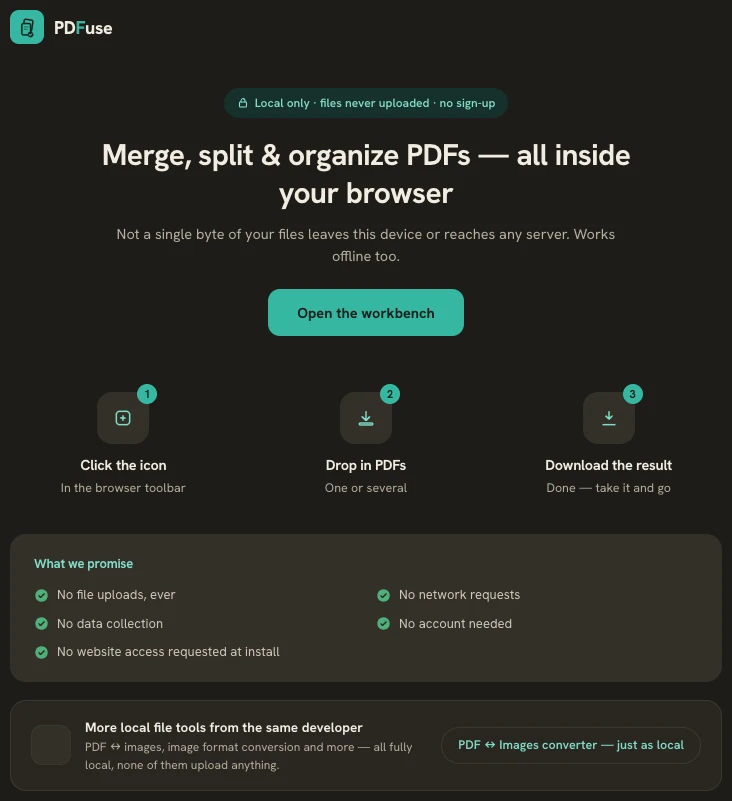
Open the file and unlock it locally
Click the extension icon, choose Organize pages, and drop the protected PDF in. The extension detects the encryption and asks for the password, stating exactly what it's for: the password is only used locally to open the file. Type it and click Unlock. The decryption is real — it happens in your browser's memory, not on a server — and a wrong password simply asks you to try again.
Export the unlocked copy
Once open, the pages appear as tiles. Change nothing — or take the chance to reorder, rotate or delete pages while you're here — and click Export PDF. The exported file, yourfile_organized.pdf, is a fresh, unencrypted copy: it opens anywhere with no password prompt. Your original stays on disk, still protected, in case you want to keep an encrypted version too.
It works inside merging and splitting too
Decrypting doesn't have to be a separate step. Feed a protected PDF straight into Merge or Split, enter the password when prompted, and the outputs come out unlocked as well.
Verify the privacy claim yourself
The extension requests no website access at install, has no account, no telemetry and no paywall. So turn off your internet connection and unlock the file again: it works identically, because nothing ever needed the network. That is the difference between a site promising “we delete your files after an hour” and a tool that never receives them at all.
What this can't do
If you've genuinely lost a password, this workflow won't recover it — and you should be suspicious of anything that promises to. Password recovery is a different, slow and usually hopeless problem. For the everyday case, though — a password you know and are tired of typing — a local unlock is the safest way to be rid of it.