How-to · PDF
How to reorder, rotate and delete PDF pages in Chrome
The short answer
Open PDF Merge's Organize pages view: every page becomes a draggable tile you can reorder, rotate 90° or delete, then export the cleaned-up file. It all runs locally in your browser — the PDF is never uploaded.
- 1
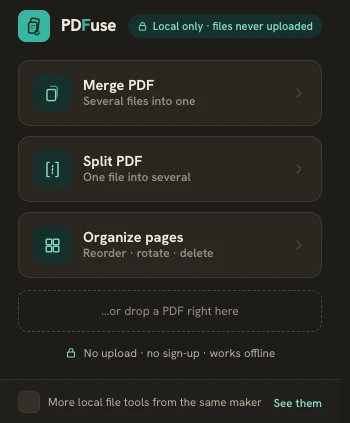
Click the PDF Merge icon in Chrome and choose “Organize pages”, then drop your PDF in.
- 2
If the file is password-protected, enter the password — it is only used locally to open the file.
- 3
Drag the page tiles into the order you want — or use Tab, Space/Enter and the arrow keys.
- 4
Rotate a page 90° or delete it from its tile; a deleted page can be restored with one click.
- 5
Click “Export PDF” and save the result, yourfile_organized.pdf. The original file is untouched.
Page-level cleanup is where most PDF tools push you online: the scan where page 3 came in sideways, the export with a blank page in the middle, the packet assembled in the wrong order. Search for “rotate pdf” or “delete pdf pages” and the top results all want the document uploaded first — a strange price to pay for turning one page 90 degrees. PDF Merge is a free Chrome extension that does this locally instead. Its Organize pages view — reorder, rotate, delete — runs entirely in your browser, and the badge in its header states the rule outright: Local only · files never uploaded.
Open Organize pages
Click the extension icon and choose Organize pages, then drop your PDF in. Every page appears as a thumbnail tile, so you're editing what you can see rather than guessing at page numbers. If the file is password-protected, you'll be asked for the password — it is used locally, only to open the document, and goes nowhere else.
Reorder by dragging — or with the keyboard
Drag any tile to a new position; the tile order is the page order of the exported file. Prefer keys? Focus a page with Tab, pick it up with Space or Enter, move it with the arrow keys and drop it — quicker than dragging when page 41 of a long scan needs to become page 2.
Rotate and delete individual pages
Each tile carries its own controls. Rotate 90° turns just that page — click again for 180 and 270 — and Delete drops it from the output. Deleting is not a leap of faith: the tile stays in place marked Deleted, and one click restores it. A summary keeps a running count of pages kept, deleted and rotated, so you know exactly what the export will contain before you make it.
Export the cleaned-up file
Click Export PDF — the button itself shows how many pages you're getting. The result is saved as yourfile_organized.pdf, and the rotation is written into the file, not just the preview, so pages open the right way up in any viewer. Your original stays untouched on disk; you can always go back.
All of it happens on your machine
The extension requests no site access at install, sends no telemetry and needs no account or payment. Because the work is local, the privacy claim is testable rather than a promise: disconnect from the internet and organize again — it behaves identically. That is a guarantee no upload-based page editor can make.
Need document-level surgery instead of page-level? The same extension merges PDF files offline and splits a PDF into separate files — same local-only rules.