How-to · Social media
How to check the character count for an X (Twitter) post
The short answer
Select your draft — or paste it — and open Word Counter. The popup compares the character count to X's 280-character limit with an ok / near / over status, computed locally in your browser. Nothing is uploaded, and no account is needed.
- 1
Select your draft post text on any page.
- 2
Click the Word Counter icon — or paste the draft into the popup.
- 3
Read the X · Post row: your character count against the 280 limit, with an ok / near / over status.
- 4
If the post contains links or emoji, leave extra margin — X weights those differently than plain characters.
- 5
Trim, re-select and check again — nothing is uploaded at any point.
X gives a post 280 characters, but its own counter only helps once you are typing in the composer. If you draft posts anywhere else — a doc, a notes app, a content calendar — you end up pasting text into X just to see whether it fits. In Chrome there is a shorter route: check the character count right where you are drafting, against the 280 limit, without sending the text anywhere.
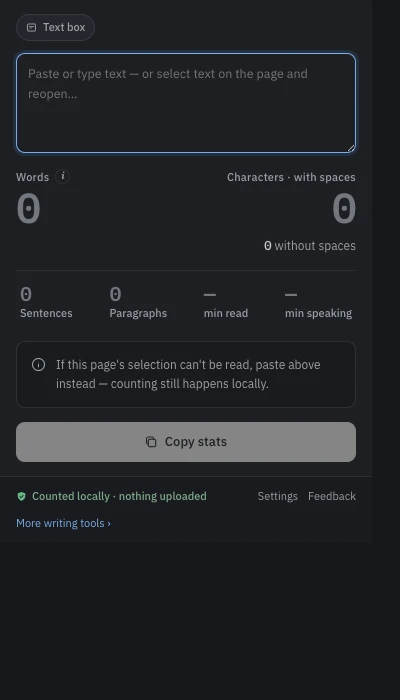
Select the draft and open the popup
Highlight the draft text on the page and click the Word Counter icon. The extension reads your selection only at that moment, on that tab — it has no standing access to any site and never reads pages in the background. If the text sits somewhere a selection can't reach, paste it into the popup instead; the counting is identical.
Read the X · Post row
Below the main counts is a platform-limits table. The X · Post row compares your character count to 280 and shows one of three states: ok, near, or over. "Near" kicks in at 90% of the limit — 252 characters — and each state has its own symbol as well as a color, so the verdict is readable at a glance. Near is the useful state: it says stop adding, before you have to start cutting.
What 280 characters actually means on X
One honest caveat: X's composer does not count plain characters. Every URL costs a flat 23 characters regardless of its real length, and most emoji — and Chinese and Japanese characters — count as two toward the limit. Word Counter compares plain Unicode characters and says so in the popup's info note. In practice, a link-free, emoji-free post that reads ok here will fit on X; a post with a long URL actually has more room than the plain count suggests, and an emoji-heavy one has less. When you are close to the limit with links or emoji in play, do the final check in X's composer.
Other limits in the same table
The table can also track an Instagram bio (150 characters), an SMS segment (160), and SEO title and meta description lengths. Which rows appear is up to you — toggle them on the options page and keep only the ones you use.
Trim and re-check, all locally
Edit the draft, re-select, reopen — the count follows whatever you select or paste. Everything runs on your device: the tool is free, needs no account, and uploads nothing, which matters when the draft is an unannounced launch. If you also want words, sentences and reading time for longer copy, the same popup covers that — see counting words on any web page.