How-to · Writing
How to count words on any web page in Chrome
The short answer
Select the text on the page, then open Word Counter — it shows words, characters, sentences and reading time instantly, computed locally. No pasting into another website.
- 1
Select the text you want to count on any web page.
- 2
Click the Word Counter icon to open the popup.
- 3
Read the word, character, sentence and reading-time counts.
- 4
Copy the stats or keep writing — nothing is uploaded.
You don't need to paste text into a word-count website. In Chrome, select the text on any page and open Word Counter — the counts appear in a popup, computed entirely in your browser.
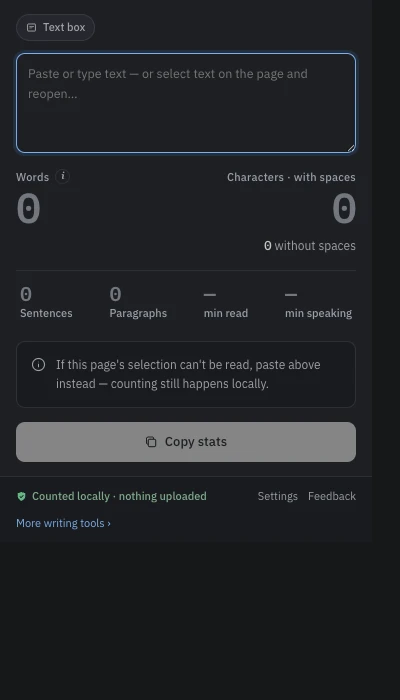
Select the text on the page
Highlight the paragraph, article or field you want to measure. Word Counter reads your current selection.
Open the popup to see the counts
Click the Word Counter icon. You get words, characters (with and without spaces), sentences, paragraphs and an estimated reading and speaking time — instantly.
Chinese, Japanese and Korean count by character
Most tools count a whole CJK sentence as one word. Word Counter counts CJK text by character, so the numbers match what editors and platforms actually expect.
Copy the stats, or keep writing
Copy the summary with one click, or leave the popup open as you edit. Everything stays on your device — no account, no upload, no telemetry.