How-to · Tabs
How to save tabs in Chrome — bookmarks, tab groups, or a session extension
The short answer
For a quick save, Ctrl+Shift+D bookmarks every tab in the window into a folder. For a workspace you'll return to, save a session snapshot instead — it keeps windows, tab order and pinned state, and restores in one click. And if the real problem is memory, suspend the tabs rather than closing them.
- 1
Quick save: press Ctrl+Shift+D to bookmark every tab in the window into a folder.
- 2
Working set: save a session snapshot that keeps windows, tab order and pinned state.
- 3
Name the snapshot so future-you can tell workspaces apart.
- 4
If the goal is memory rather than closing, sleep idle tabs instead — they stay on the tab strip.
- 5
Restore the snapshot (or click any sleeping tab) to pick up exactly where you left off.
Forty tabs open, and you need the window back — for a meeting, a restart, or just sanity. The goal is to put the tabs somewhere you'll actually find them again. Chrome has two built-in answers, and an extension adds a third that keeps more of what matters.
Built-in #1: Bookmark all tabs
Press Ctrl+Shift+D (⌘+Shift+D on a Mac) and Chrome files every tab in the window into a bookmark folder. Quick and dependable — but each rescue mission adds another folder, and a bookmark stores only the URL: no tab order, no pinned state, no sense of which window was which.
Built-in #2: Tab groups
Name a tab group, and Chrome can save it and collapse it out of the way — good for a project's tabs you dip in and out of. It won't capture a whole multi-window workspace, though, and reopening a big saved group loads every page at full memory cost.
The extension answer: save the session
A session snapshot saves the whole picture in one object: every window, every tab, in order. That's the unit you actually lose and want back. With DozeKeep, session restore is core — sessions are snapshotted so even a crash doesn't cost you a window — and Pro adds named snapshots with history (“client audit, both windows”) plus import/export. One restore later, the workspace is back as it was.
Or don't close them at all
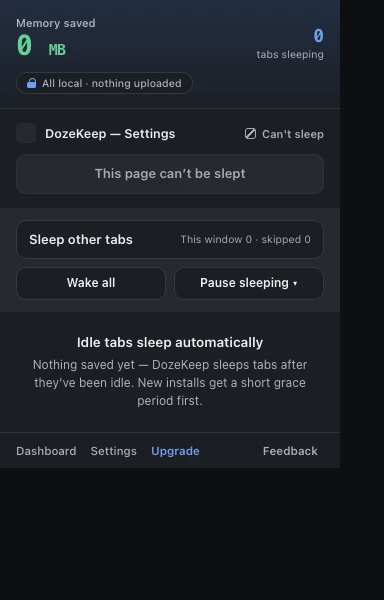
Often “save tabs” really means “this window is eating my laptop”. Then the better move is to suspend instead of close: idle tabs sleep in place, each releasing up to 90–95% of its memory, while staying visible on the tab strip. Click one to wake it at the same URL and scroll position; tabs playing audio and pinned tabs are skipped automatically.
Keep it private
All of this runs locally — DozeKeep needs no all-sites access and no account, and what you have open never leaves the browser. If you want your saved sessions on another machine too, an optional end-to-end-encrypted sync add-on carries them across devices without making them readable to anyone else.
Related: recovering lost tabs in Chrome covers the rescue side, and suspending inactive tabs the memory side.